
Campaigns
Turn a WhatsApp campaign into a real conversation.
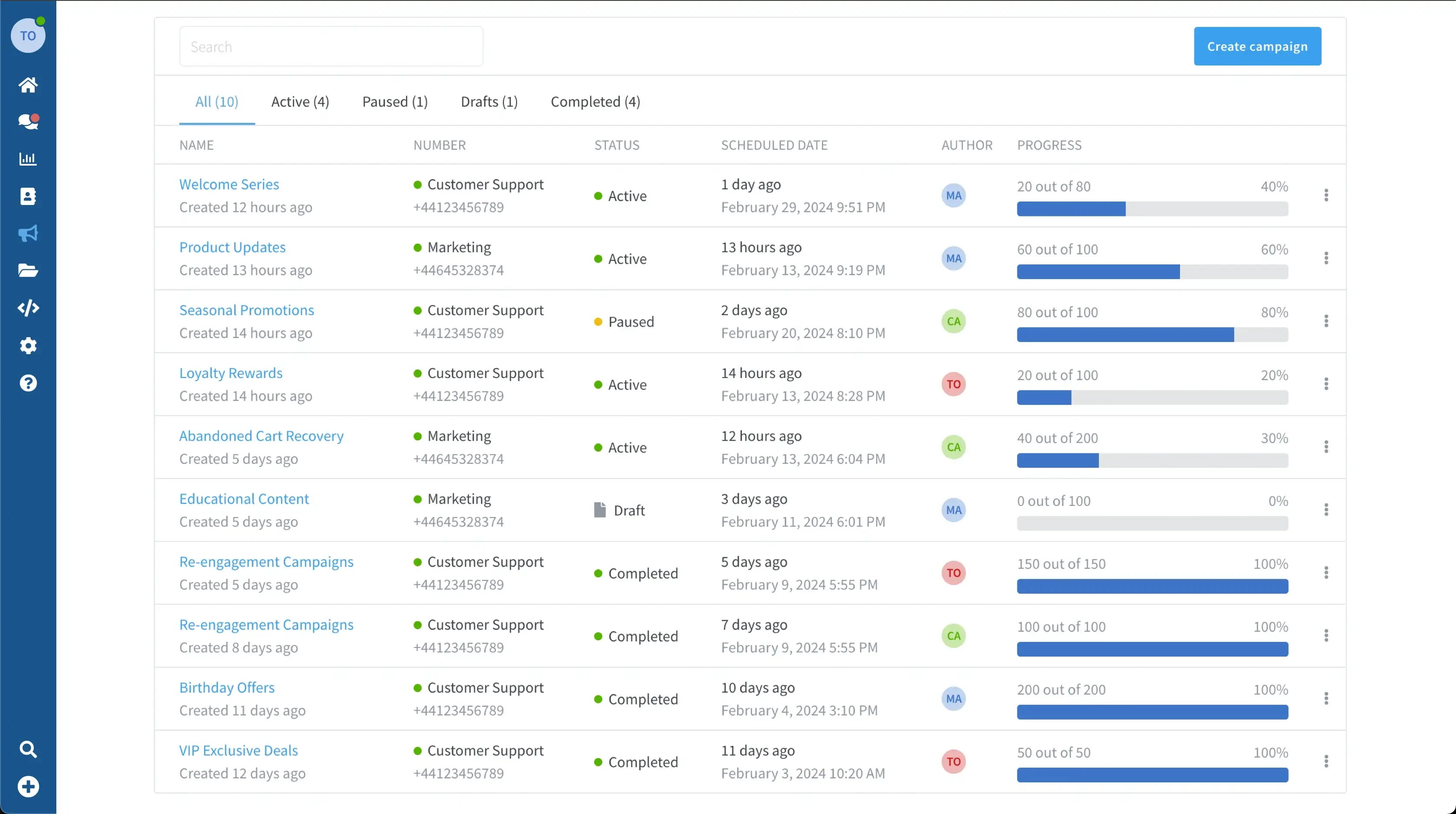
Reach customers who opted in. When they reply, your team picks up the conversation in Wassenger.
Product example
Audience · customers who opted inLabel: restock updates
Approved template · exampleCustomer
Campaign: new collection · ready for your team
Pick your audience. Make it personal. Follow up.
The right customers
Import your list or select contacts. Check consent before sending.
A message worth opening
Use a template with contact variables, plus an image or document when it helps.
Replies with context
Keep the follow-up in your shared inbox and track campaign delivery.
See how it works
Frequently Asked Questions
How many recipients can I reach?
Campaign and recipient limits depend on your plan. Check the current plan comparison before importing your list. WhatsApp sending limits and policies also apply.
Do I need an approved template?
With the official WhatsApp Business API, an approved template is required outside the customer service window. You can manage templates in Wassenger. Approval is handled by Meta.
Can I personalize messages?
Yes. Match template variables to contact details or CSV columns, then review the message before sending.
Where do replies go?
Your team can handle replies in the shared inbox. Configure any automation separately; sending a campaign does not enable AI replies by itself.
How do opt-outs work?
On a compatible plan and number with chat support, enable unsubscribe handling and set the opt-out keyword, such as STOP. Confirm those settings before sending. It is not enabled for every campaign by default.
Give your next campaign somewhere to go.
Choose a compatible plan, connect your number and prepare a campaign your team can follow up on.