Most businesses lose people at exactly the wrong moment. You've got a customer chatting with you on WhatsApp — interested, engaged, right there — and then you send them a link to a form on another website. They tap it, a browser opens, it loads slowly, they get distracted, and you never hear back. Every hop out of the conversation is a place to lose them.
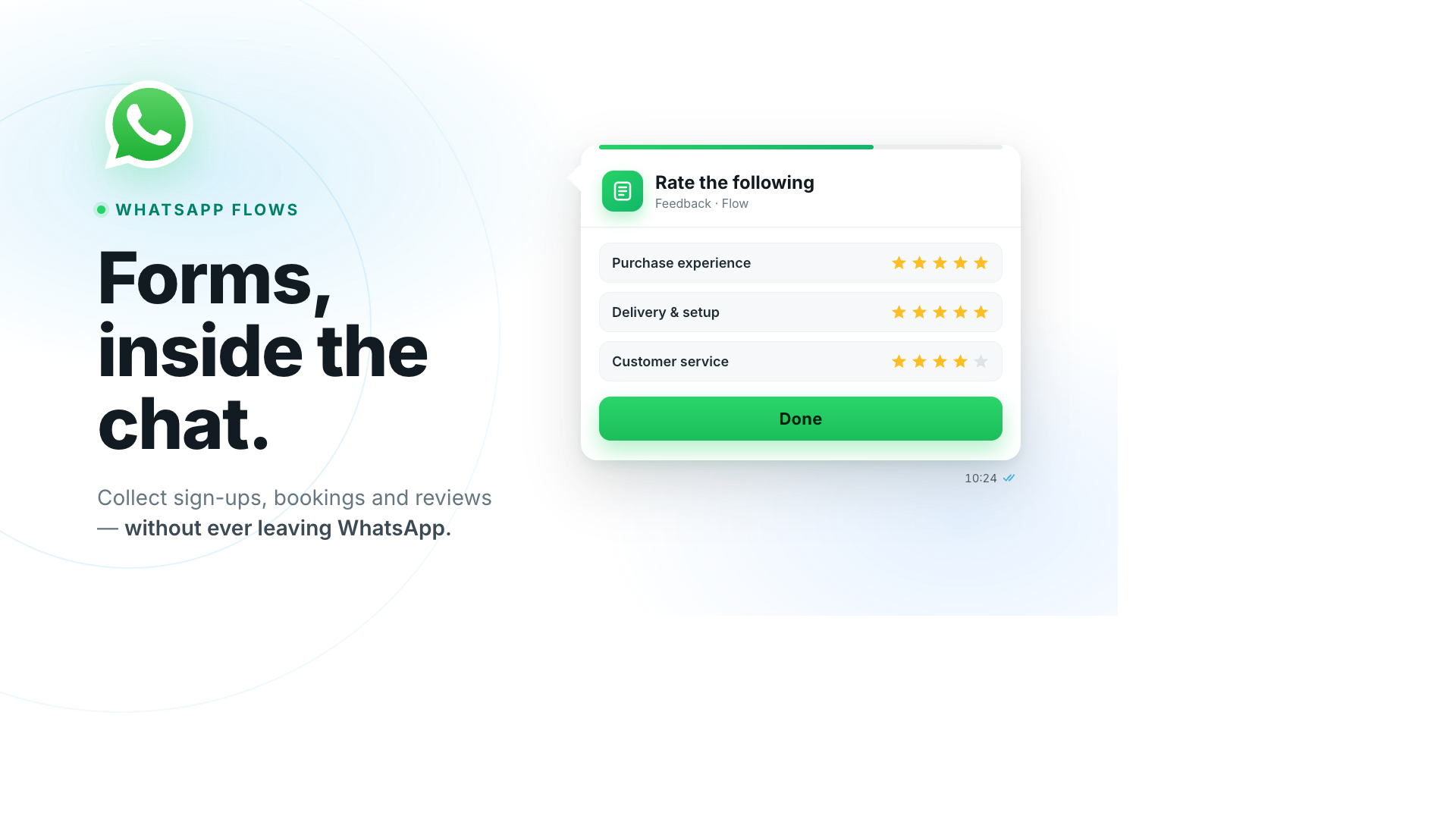
WhatsApp Flows fix that — and they're now built right into Wassenger. A Flow is a small, guided form that opens inside the WhatsApp chat: the customer taps one button, fills in a few fields, and taps send, without ever leaving the conversation. No link, no browser, no drop-off. And because Flows are now part of Wassenger, you design them, send them and collect the answers without ever leaving your inbox — no extra tools, no code. Below is what Flows are, what you can do with them, and exactly how they work in Wassenger.
What is a WhatsApp Flow?
A WhatsApp Flow is an interactive, multi-screen form that runs natively inside a WhatsApp chat. Instead of a wall of back-and-forth messages ("What's your name? … And your email? … What date works?"), you send a single message with a button. The customer taps it and gets a clean, app-like screen with real form fields:
- Text inputs (name, email, notes)
- Dropdowns and multi-select lists
- Date pickers
- Star ratings and opt-ins
- Several screens, in sequence
They fill it in, tap submit, and the answers come straight back to you as structured data — not a messy transcript you have to read and re-type. It's the difference between asking for information and collecting it.
Because it all happens inside WhatsApp, there's nothing to install, no page to load, and no reason for the customer to wander off. And now that Flows live inside Wassenger, the whole loop — build, send, receive — happens in one place.
What can you use WhatsApp Flows for?
This is where it gets useful. A Flow is basically "a form your customer will actually finish." A few of the highest-value uses:
- Sign-ups and registrations. Event registration, waitlists, newsletter opt-ins, account creation — capture the details in the chat instead of sending people to a landing page.
- Lead generation. Qualify a prospect right where they raised their hand: budget, use case, company size, timeline. Your sales team gets a clean, structured lead instead of a half-finished conversation.
- Appointment and delivery booking. Let customers pick a service, a date and a time slot inside the chat — for salons, clinics, restaurants, home services and deliveries.
- Delivery and registration details. Address, preferred slot, order notes, ID or reference numbers — gathered in one tidy screen instead of five separate messages.
- Reviews, feedback and surveys. Send a quick star-rating and a comment after a purchase or a support ticket. CSAT, NPS and post-delivery reviews get far higher completion rates when the customer never has to leave the chat.
- Order and quote forms. Product, quantity, options, notes — take a structured order or a quote request without a phone call.
The pattern is always the same: whenever you'd normally send a link to a form, send a Flow instead. Completion goes up because the friction goes away.
What a Flow looks like to your customer
From the customer's side it feels effortless. They receive a normal-looking message with a call-to-action button — something like "Give feedback" or "Book now." They tap it, and a form slides up over the chat: one screen at a time, with the fields you defined. They fill it in with taps and a little typing, hit continue, and they're done. The whole thing stays inside WhatsApp, on the phone they already have open.
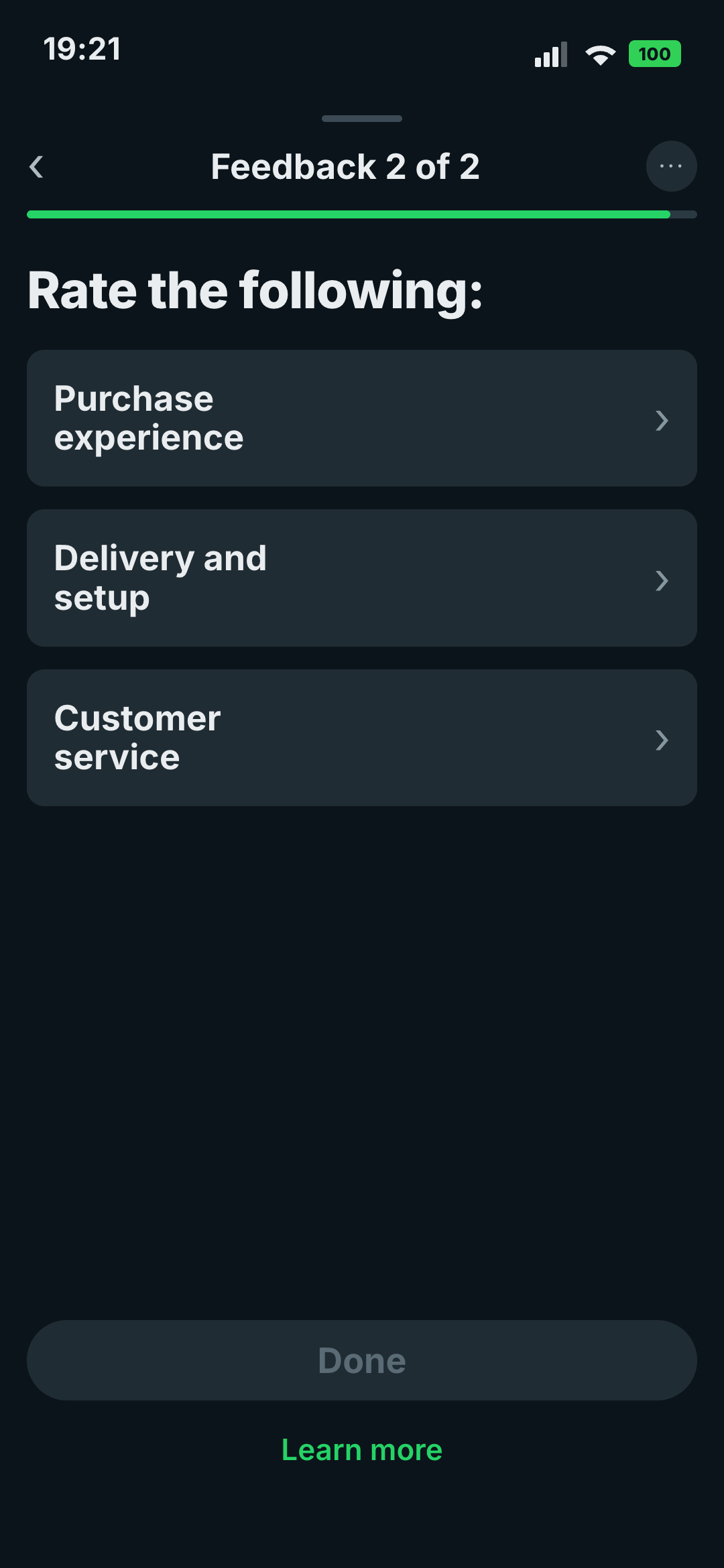
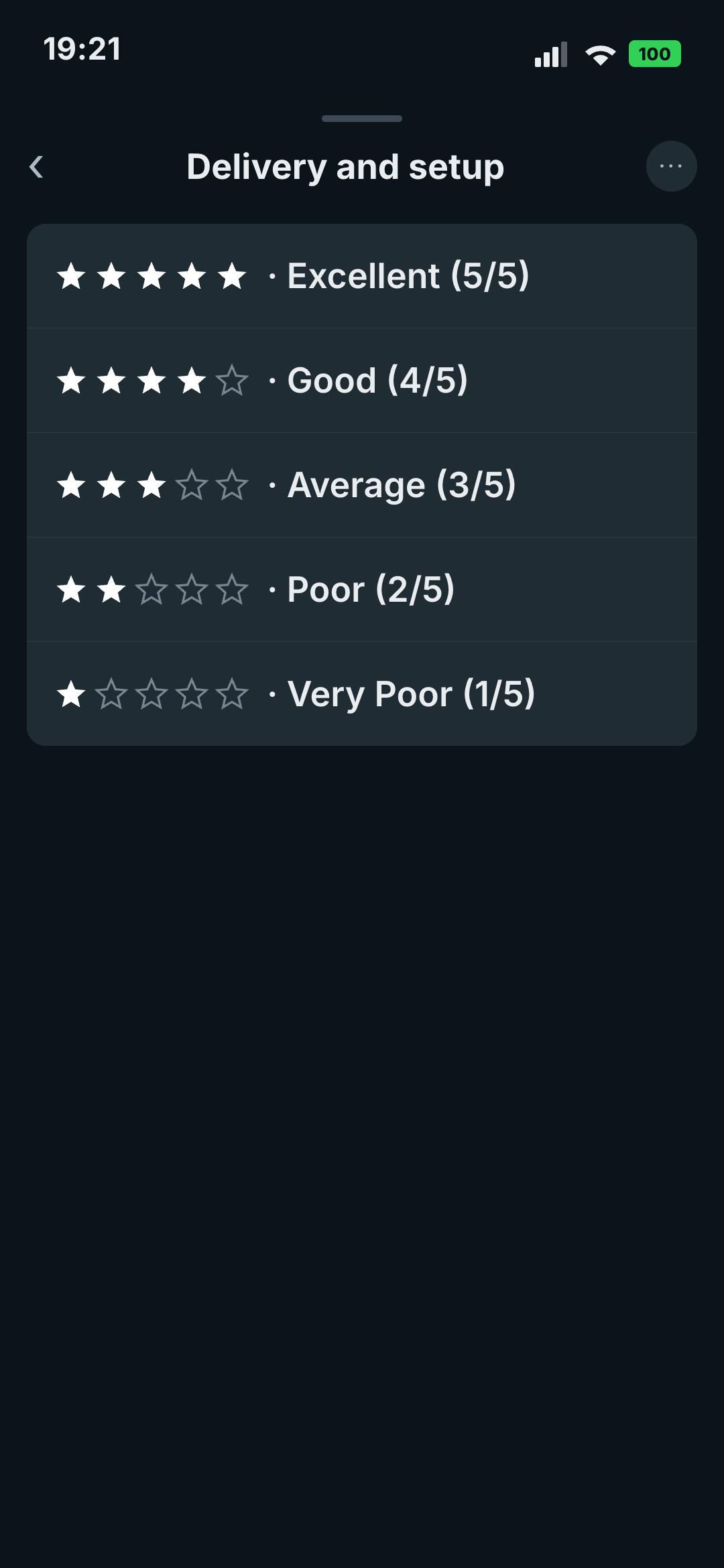
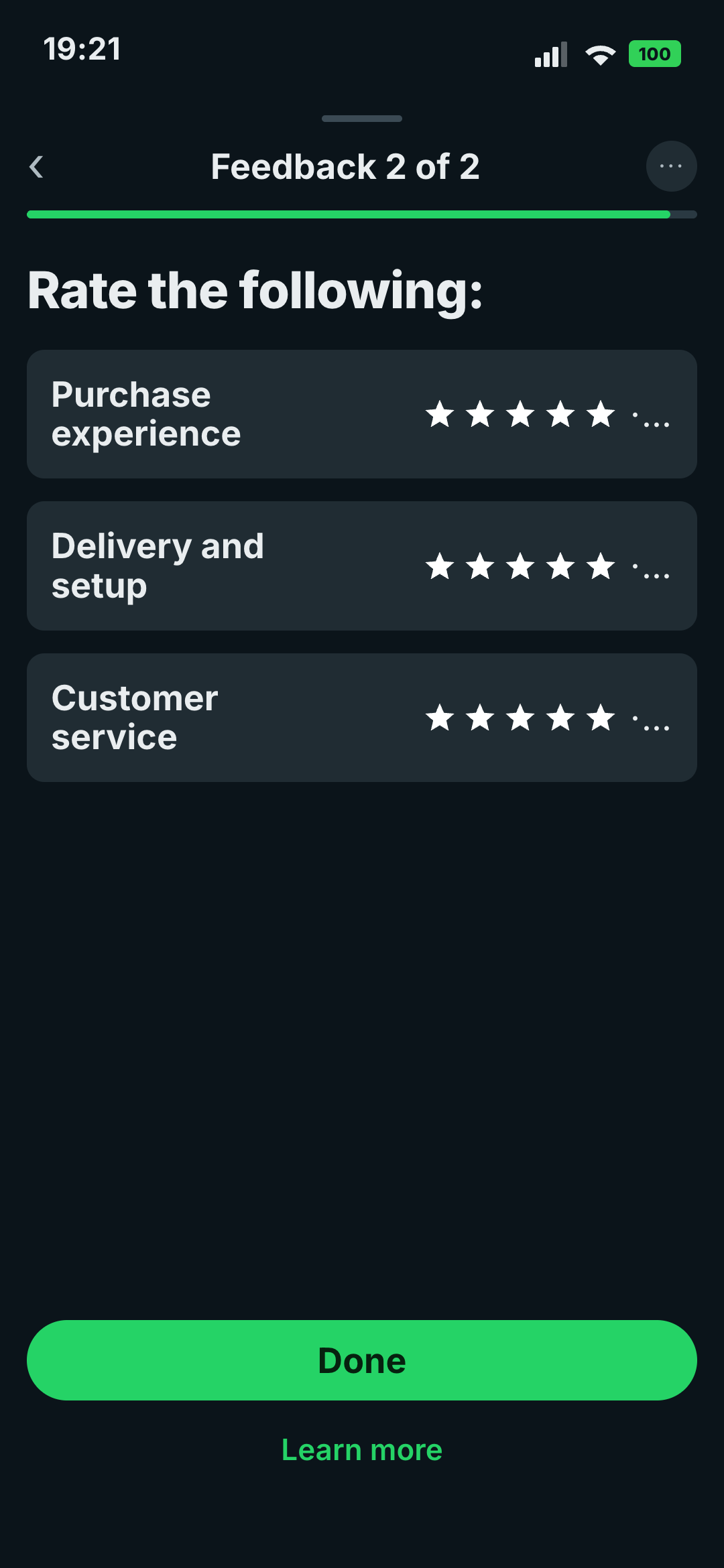
That's the entire reason Flows convert better than links: there's no context switch, no login, no waiting for a page. The customer is already in the chat — the form comes to them.
How to create a WhatsApp Flow in Wassenger
You build a Flow once, right inside Wassenger, then reuse it as many times as you like:
- Open the WhatsApp Flows section from your dashboard.
- Click Create flow, give it a name, and pick a category — sign-up, lead generation, appointment booking, survey, and so on.
- Start from a ready-made template (feedback survey, lead form, appointment booking) or design your own screens: add the fields you want (text, dropdowns, dates, ratings) and the order they appear in.
- Use the live preview to see exactly what the customer will see as you edit.
- When it looks right, publish it. A published Flow is ready to send.
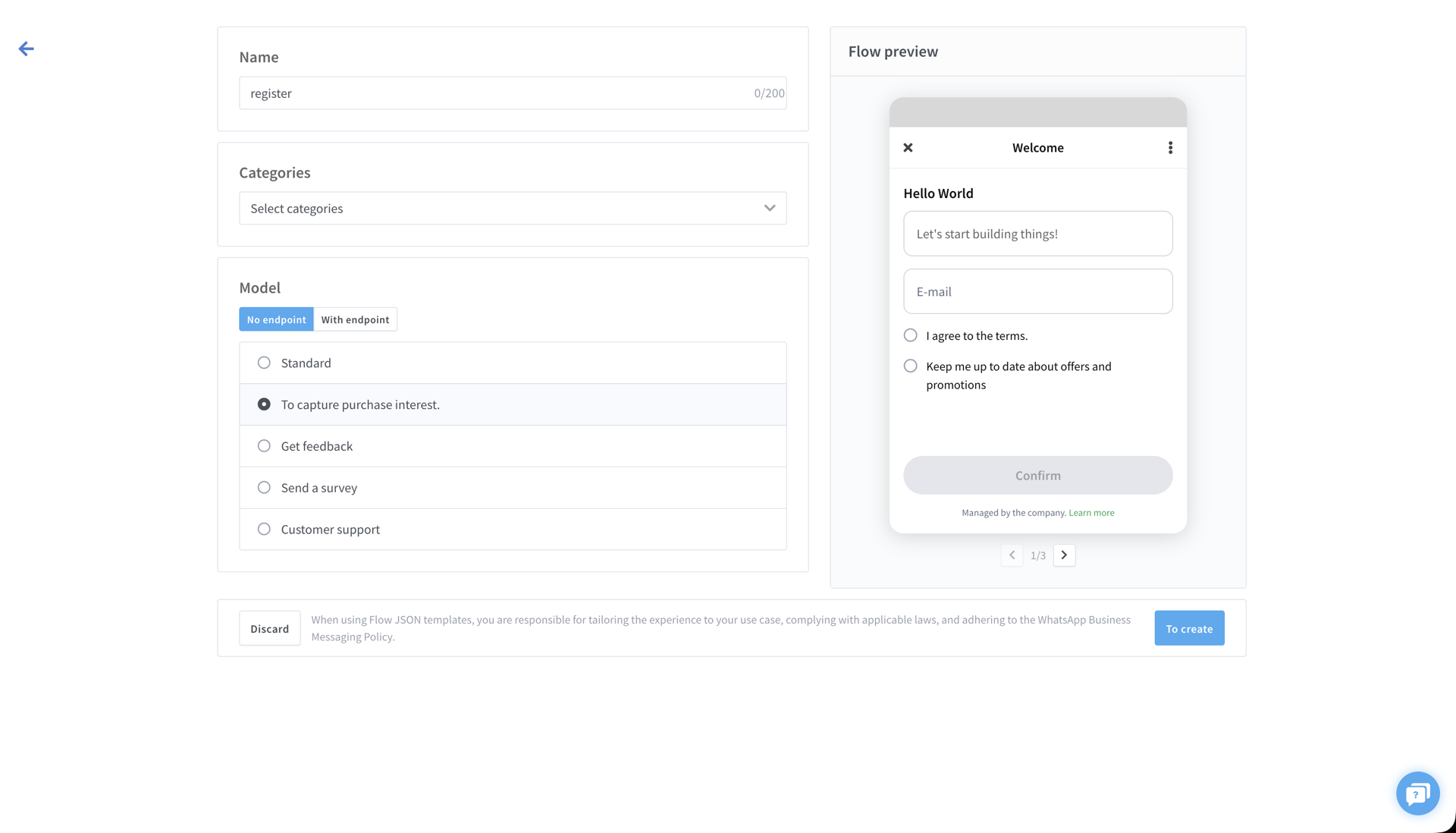
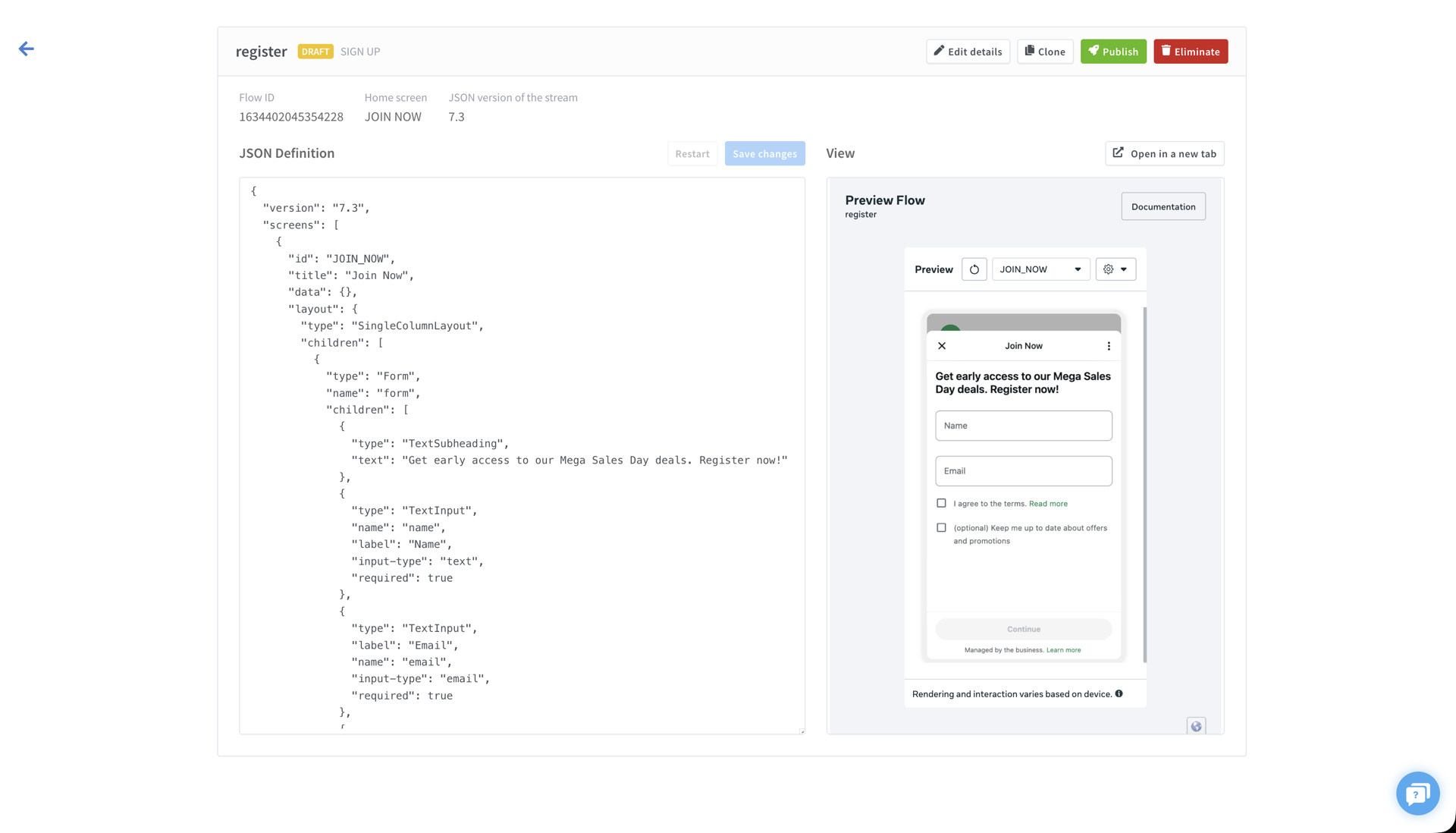
You only do this once per form. A feedback survey or a booking form is built a single time, then sent to thousands of customers.
How to send a Flow from a chat
Once a Flow is published, sending it from your Wassenger inbox takes seconds:
- Open the chat with your customer.
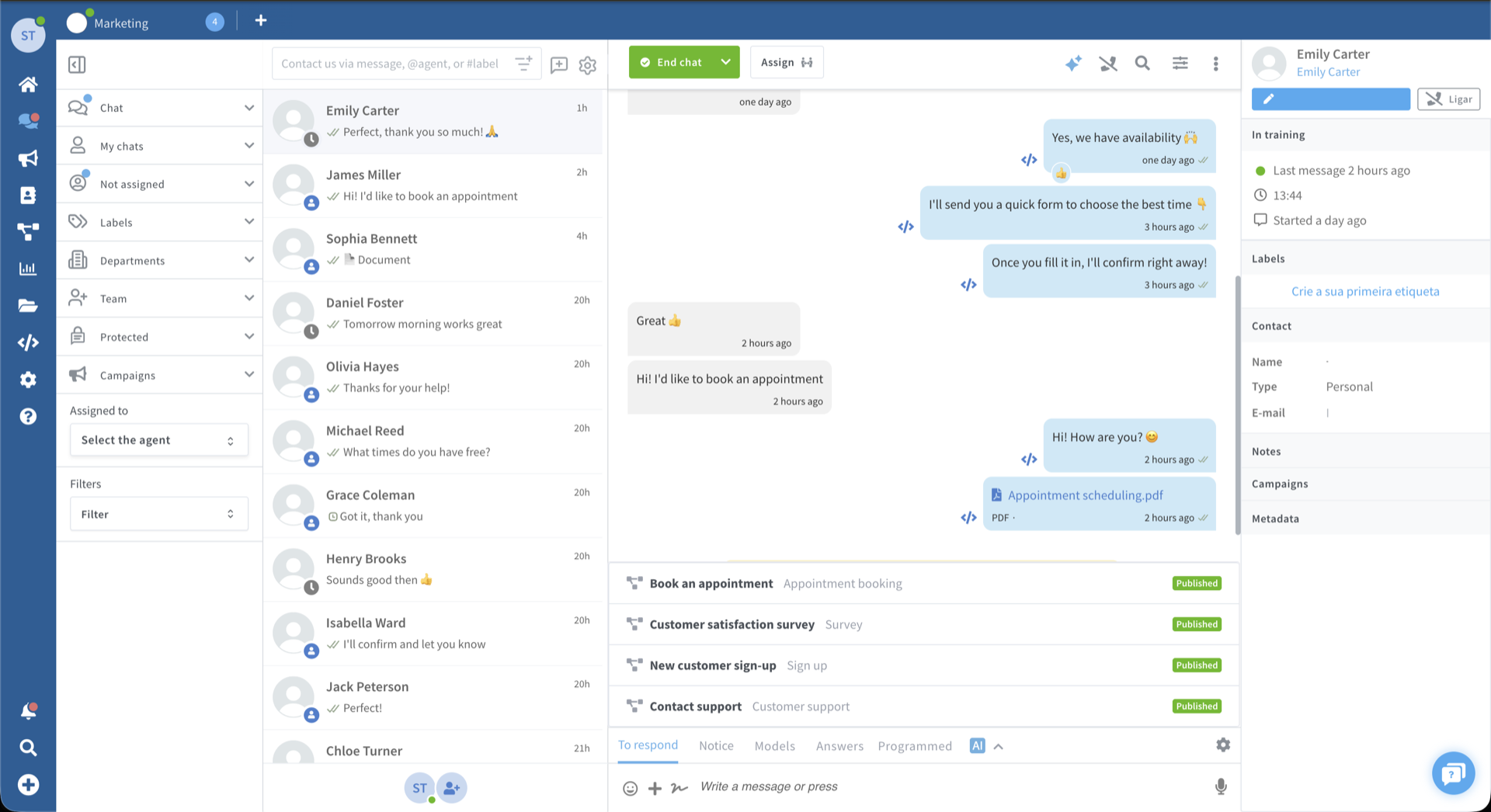
- In the message box, click the "+" button and choose Send Flow.
- Pick the Flow you want from the list of your published Flows.
- A panel opens where you set the message text (what the customer reads above the button), the button label (the call-to-action, like "Book now"), and the opening screen. A live preview shows exactly how it will look.
- Click Send Flow.
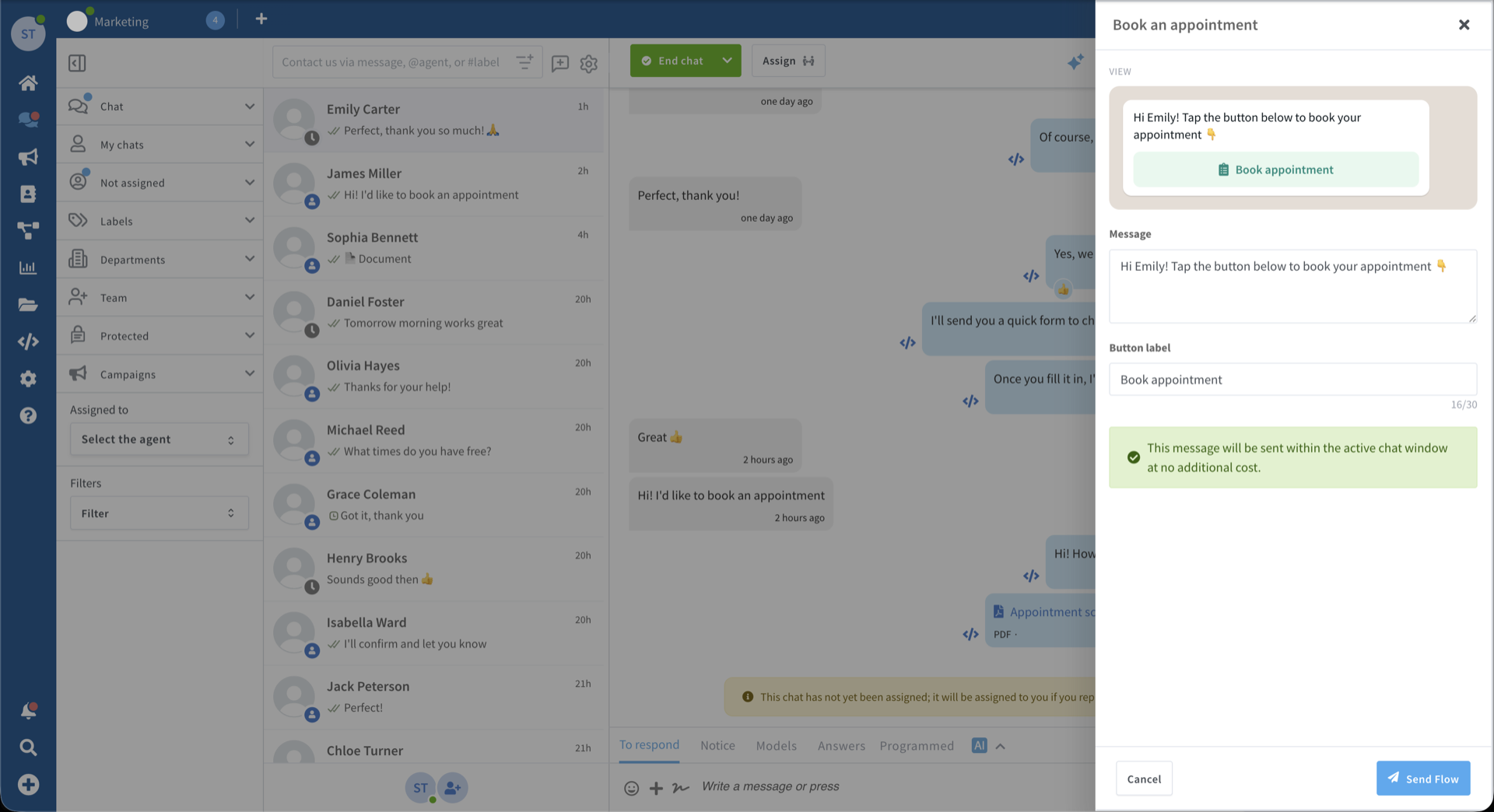
The customer receives it as an interactive message and can complete the form on the spot.
Where the answers land
When the customer submits the Flow, their answers come straight back into the conversation in Wassenger as a tidy card — not scattered messages. Open it and you get a clean panel with every field and the value they entered: the rating they gave, the date they picked, the details they typed. You can read it at a glance and export it as JSON, CSV or text for your CRM or spreadsheet.
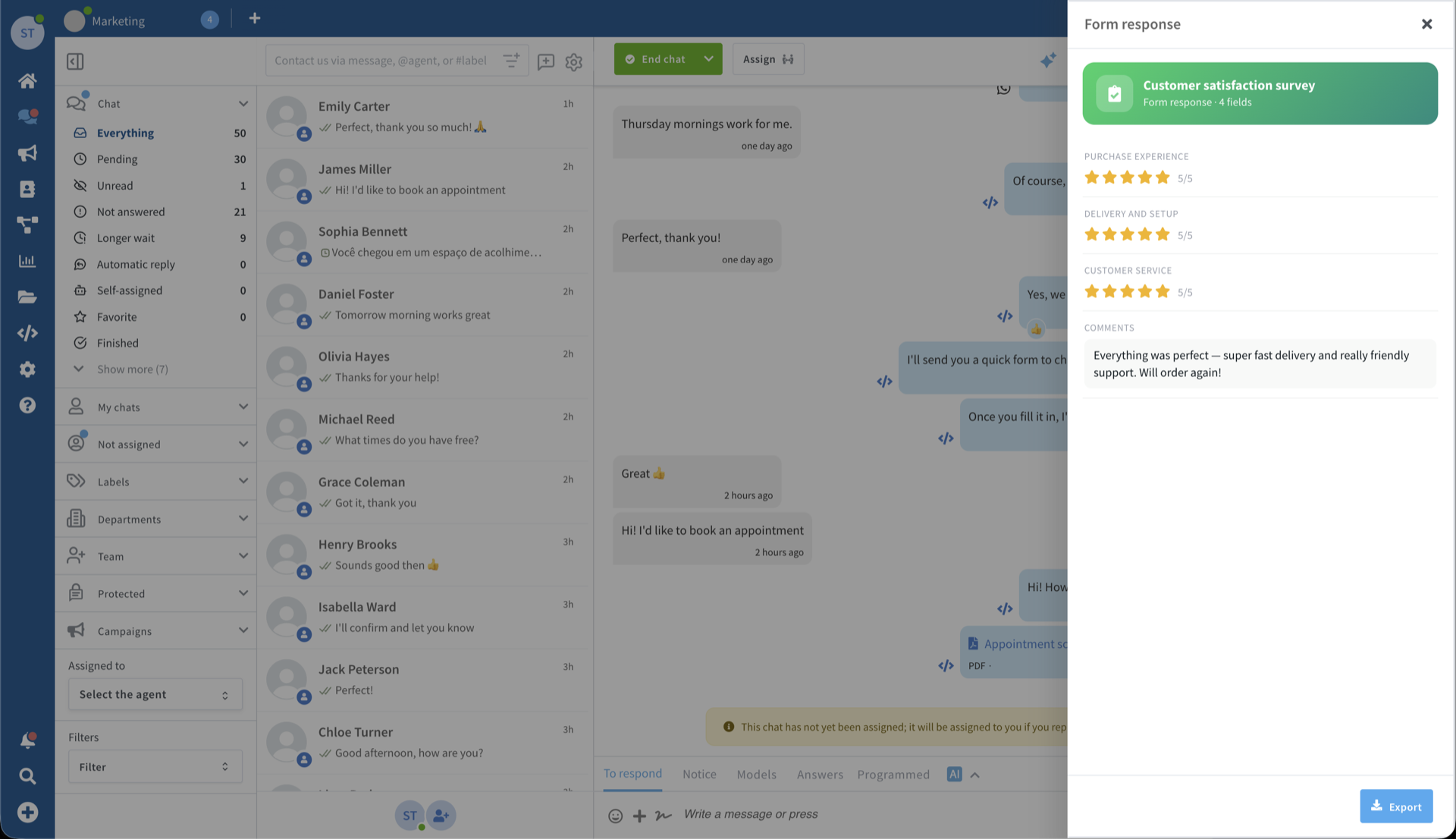
No copy-pasting from a chat transcript, no re-typing. The information arrives structured and ready to use, right in your inbox.
What you need to use WhatsApp Flows
Flows run on the official WhatsApp Business Platform, so two things need to be in place:
- A WhatsApp Business API number connected to Wassenger. Flows are part of the official WhatsApp Business Platform, so they work on WhatsApp Business API numbers — not on numbers linked by QR code.
- A verified WhatsApp Business account. To create and send Flows, Meta requires your WhatsApp Business account to complete Meta Business Verification — a one-time process in Meta Business Manager. You can explore the Flows section beforehand, and once Meta approves your business, Flows switch on automatically. If your account isn't verified yet, Wassenger shows a notice with a shortcut to get it done.
Both are one-time setup steps. Once your number is connected and your business is verified, Flows are ready to use across every chat.
One thing to know: the 24-hour window
Flows are interactive messages, so you send them inside an open conversation — within 24 hours of the customer's last message. That's the natural moment anyway: someone asks about booking, you send the booking Flow; a support ticket wraps up, you send the feedback Flow.
If you need to start a conversation with a Flow (before the customer has messaged you), you do it with a pre-approved message template that carries a Flow button — the same idea, packaged so it can open a brand-new chat. You set those up in Wassenger too.
Frequently asked questions
Do customers need to install anything to use a Flow? No. Flows run inside WhatsApp. The customer taps a button and the form opens right there — nothing to download, no page to load.
What kind of fields can a Flow contain? Text inputs, dropdowns, multi-select lists, date pickers, star ratings, opt-ins and multiple screens in sequence — enough to cover sign-ups, bookings, orders, surveys and lead forms.
Where do the responses go? Straight back into the chat in Wassenger as a structured card you can open, read at a glance, and export to JSON, CSV or text for your CRM.
Can I reuse the same Flow? Yes. You build a Flow once and send it to as many customers as you like. Update it any time and re-publish.
When can I send a Flow? Within the 24-hour customer service window, after the customer has messaged you. To open a new conversation with a Flow, use a message template with a Flow button.
WhatsApp Flows are now part of Wassenger
Flows take the thing you already do — talk to customers on WhatsApp — and let you collect sign-ups, bookings, orders and reviews without ever sending anyone away. And now it's all built into Wassenger: design a Flow, send it from your inbox, and watch the structured answers come back — no extra tools, no code, no drop-off. Less friction, higher completion, cleaner data.