Wassenger now has an app for HubSpot. You connect it once, and from then on your WhatsApp chats and calls go into HubSpot by themselves, each one on the right contact. Nobody has to copy messages or write down calls.
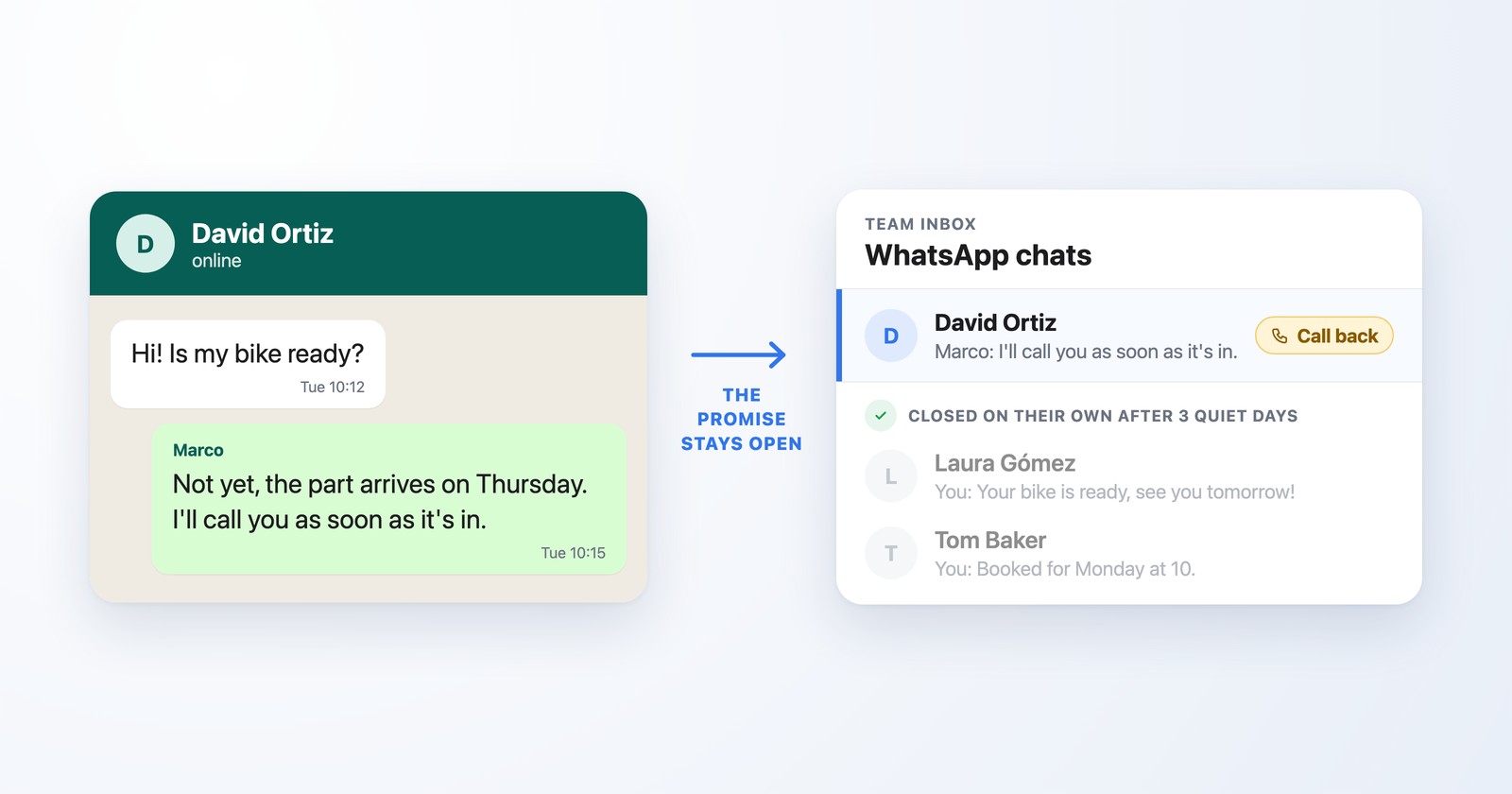
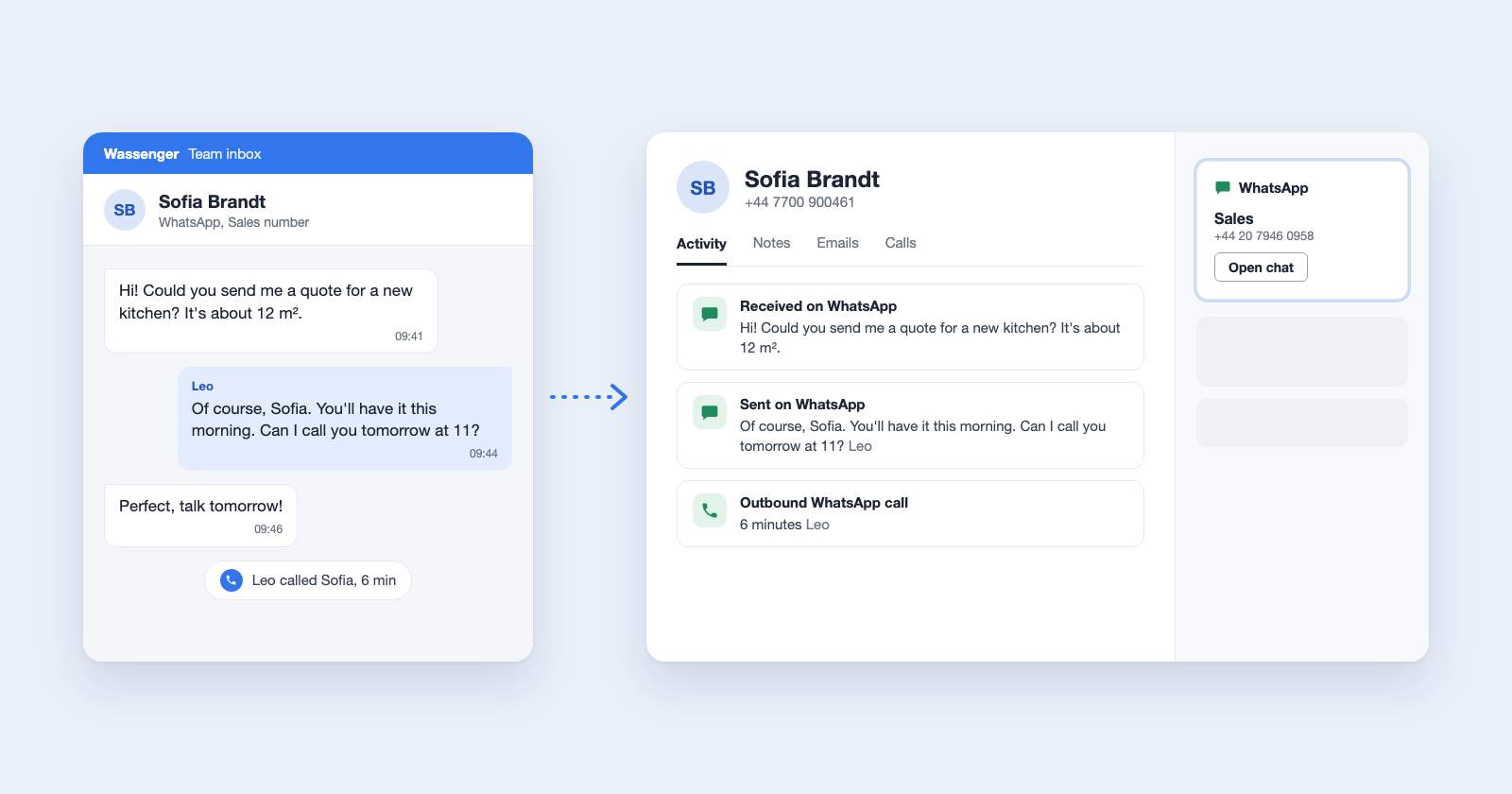
Think of a customer who writes to your WhatsApp number on Monday to ask for a quote. A colleague answers from Wassenger and sends the prices, and on Tuesday they talk on a WhatsApp call. On Thursday your sales manager opens that customer in HubSpot to follow up. Without the app, there's nothing there unless someone copied it by hand. With it, the messages and the call are already on the contact.
In HubSpot the app is called Wassenger WhatsApp Inbox. Here's what it does, what you need and how to connect it.
What you get in HubSpot
- Your WhatsApp messages on the contact. You see what the customer wrote and what your team answered from Wassenger.
- Your WhatsApp calls with your contacts, on numbers that take WhatsApp calls. You see the calls you made and the ones you got, answered or missed, and how long each one lasted. You also see which teammate took the call, if they have a HubSpot user with the same email.
- A WhatsApp card on each contact, if you add it. It's a small box on the contact that shows which of your connected numbers chat with that person. Its Open chat button opens the chat in Wassenger, so you go from the customer's record to the conversation in one click.
HubSpot gets your chats and calls from the moment you connect. Older ones stay in Wassenger.
A chat goes in when its number matches a HubSpot contact, so if a supplier is saved as a contact, those chats go in too. And only replies sent from Wassenger reach HubSpot: a reply someone on your team types in the WhatsApp app on their phone stays out. Ask your team to answer from Wassenger.
Your contacts stay as they are
When you connect, HubSpot describes the app's permissions in broad words: it says the app may see, create, change and delete contacts. This is what the app really does:
- It reads your contacts to find who each chat is with.
- It adds your WhatsApp chats and calls to them.
- It looks at your HubSpot users to put each chat and call under the right teammate.
- It creates a contact only if you ask it to, for calls with numbers that aren't in HubSpot yet (more on that below).
Wassenger never changes the details on a contact, never deletes a contact and never merges two contacts into one.
The Connect HubSpot screen in Wassenger also says HubSpot may send messages from your numbers. Right now it never sends any: it only receives your chats and calls.
What you need before you start
- You're an owner or admin in Wassenger.
- You're a Super Admin in HubSpot, the role that can change every setting. If you're not sure, ask whoever set up your HubSpot account.
- Each WhatsApp number you connect is on the Platform plan. You'll see it on the Connect HubSpot screen: a number without it shows up in gray with Needs a Platform plan. Upgrade that number first: see plans and prices.
- Your customers are saved as contacts in HubSpot, with their number in the Phone number or Mobile phone number field. A chat reaches HubSpot only when its number matches a contact.
You connect in one go, from Wassenger to HubSpot and back, in one browser. If your Wassenger admin and your HubSpot Super Admin are different people, do it together on one computer: one signs in to Wassenger, the other to HubSpot.
Connect HubSpot in about two minutes
Once you have all that, connecting takes about two minutes. Choose every number you need now: to change them later, you have to disconnect and connect again.
On the way, HubSpot may show two screens that can look alarming. Both are normal: one lists the app's permissions in broad words (explained above), and, because the app is new, HubSpot may warn that it isn't verified yet and ask you to type a phrase to go on.
- Open the Connect HubSpot screen in Wassenger. Sign in if it asks you to.
- Click each WhatsApp number you want in HubSpot. It gets a blue check mark.
- Click Connect HubSpot, at the bottom right.
- A new page opens. Check that your numbers are right. The page has a yellow safety box: go on only if you just clicked Connect HubSpot or Reconnect yourself. If you reached this page from a link someone sent you, close it.
- Click Continue to HubSpot.
- You're now in HubSpot, where the app shows up as Wassenger WhatsApp Inbox. HubSpot lists what the app may do. Choose your HubSpot account.
- Click Connect app.
- HubSpot may warn that the app isn't verified yet. That's normal: it shows this for new apps. Type I accept the risk, then click Connect.
HubSpot sends you back to Wassenger. In Connected apps, the HubSpot page says Connected, next to a green dot. That means it worked.
Test it with your own phone
- In HubSpot, save your own mobile number as a new contact. If your number is already on a contact, use that one.
- From that phone, send a WhatsApp message to one of the numbers you connected.
- Wait one minute.
- Open the contact in HubSpot.
Your message is on the contact. If it isn't, read "If a chat doesn't show up" below.
Add the WhatsApp card (optional)
Messages and calls reach HubSpot without the card, so you can skip this part. A HubSpot Super Admin adds it once, and then the whole team sees it:
- In HubSpot, go to CRM, then Contacts, and open any contact.
- Click Customize, then Default view.
- Click Add card, at the top of the right side, and open the Card library tab.
- In the card type menu, choose Apps.
- Find WhatsApp in the list and click its Add card button.
- Close the card list and click Save and exit.
Now every contact shows the WhatsApp card on the right. To open a chat, click Open chat under its number.
Sometimes the card shows a short note instead:
- WhatsApp is not connected yet means this HubSpot account isn't connected. Follow the steps in "Connect HubSpot" above.
- No phone number means the contact has no phone number in HubSpot. Add one, and the card finds their chats.
- No WhatsApp chats yet means none of your connected numbers has chatted with that person yet.
If a chat doesn't show up
- The person isn't a contact yet. Add them in HubSpot, with their number in Phone number or Mobile phone number, and wait up to 15 minutes. Their new messages show up from then on. Older ones stay in Wassenger.
- The number is missing its country code. Each chat goes to the contact with the same number. For customers in other countries, save the number with its country code, like +44 7700 900123. Numbers from your own country work just as you saved them.
- Two contacts have the same number. HubSpot can't know which one is right, so the chat goes to neither. Keep each number on one contact only.
- The reply was sent from a phone. Only replies sent from Wassenger go to HubSpot. Replies typed in the WhatsApp app on a phone stay out.
- It was sent before you connected. HubSpot only gets messages sent after you connect.
- It's a group chat, a campaign or a bot message. These stay in Wassenger and never go to HubSpot.
Photos, documents and voice notes show up in HubSpot as one line that says what was sent, and a document shows its name. The file itself stays in Wassenger.
If a call doesn't show up
- Calling isn't turned on for that number. A number takes WhatsApp calls only when calling is turned on for it. A number you also use in the WhatsApp Business app on a phone can't take them. Calls on those numbers never reach HubSpot, but their messages still do. To turn calling on, see WhatsApp calls in Wassenger.
- The other person isn't a contact. By default, HubSpot only shows calls with your contacts. To add the rest too, open Connected apps, click HubSpot, find Calls from unknown numbers and choose Create a contact. It saves right away. From then on, each new number you call, or that calls you, becomes a new contact in HubSpot with the call on it, including strangers and wrong numbers.
Change your numbers or disconnect
To add or remove a number, disconnect HubSpot and connect it again like the first time, choosing every number you need. If you use Create a contact for calls, choose it again too.
To disconnect, open Connected apps, click HubSpot, then Revoke HubSpot, and confirm with Revoke. Your numbers stop sending to HubSpot right away, and everything already on your contacts stays there.
If the HubSpot page in Connected apps ever asks you to reconnect, click Reconnect and follow steps 4 to 8 above, choosing the same HubSpot account. Your numbers and settings stay the same.
Next steps
- Connect HubSpot now, then run the test with your own phone.
- Read the HubSpot guide in the Wassenger help center for every detail, including how to remove the app from HubSpot.
- New to Wassenger? Create your account and connect your WhatsApp number first.