Built a WhatsApp AI agent bot tailored for your business that can understand clients in text, audio, and images, and can reply in both text and audio
Following this tutorial, you will run a fully functional AI chatbot with multimodal capabilities on your computer or cloud server in minutes. This chatbot will behave like a virtual customer support assistant for a specific business purpose.
Table of Contents
- Introduction
- Configuration
- Customization
- Implementation of multimodal processing: Text
- Implementation of multimodal processing: Audio
- Implementation of multimodal processing: Images
- Integration with RAG (Retrieval-Augmented Generation)
- Deployment and Testing
🤩 🤖 Wassenger is a complete API solution for WhatsApp. Sign up for a 7-day free trial and get started in minutes!
Here is the video tutorial:
In this tutorial, you will learn how to create a Chatgpt-powered WhatsApp chatbot that can:
- Process and respond to text messages with contextual and accurate responses
- Transcribed and analysed voice messages to provide appropriate responses
- Interpret and extract information from images to generate relevant responses
- Handle combinations of these input types in a fluid conversation
We will use n8n, the Wassenger API for WhatsApp integration and the OpenAI API (ChatGPT) to equip our chatbot with advanced natural language processing and multimodal comprehension capabilities.
By the end of this tutorial, you will have a fully functional WhatsApp chatbot that can understand and respond to your customers’ queries regardless of the format in which they present them, significantly improving the user experience and the efficiency of your customer service.
🤩 🤖 Wassenger is a complete API solution for WhatsApp. Sign up for a 7-day free trial and get started in minutes!
Let’s start with the configuration of our multimodal WhatsApp chatbot.
Requirements
- n8n: v1.70 or later
- Wassenger account: Sign up for free to get API access
- API Key: obtain your API key here
- WhatsApp number: At least one WhatsApp number connected to Wassenger
- OpenAI API credentials: you can get them from here
- Google Account
Important! 💬 If you’re new to using n8n with Wassenger, check out our setup guide to get started quickly.
Now, let’s create our new AI ChatBot! 🤖
Configuration
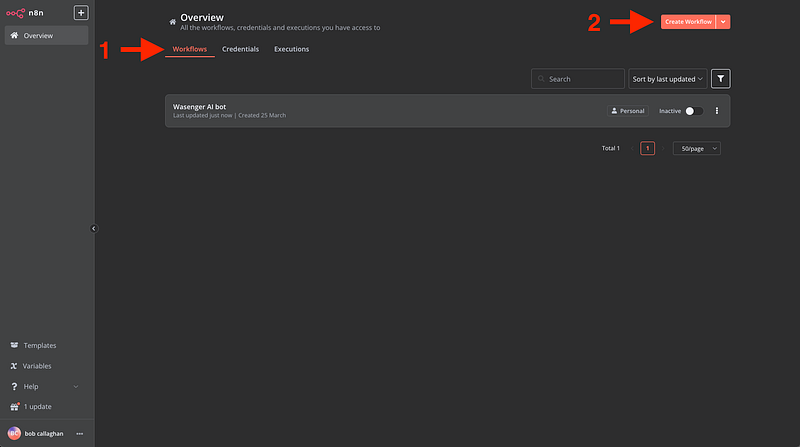
1. Create a new Workflow on n8n
Within the n8n interface, go to ‘Workflows’ and click ‘Create Workflow’
🤩 🤖 Wassenger is a complete API solution for WhatsApp. Sign up for a 7-day free trial and get started in minutes!
2. Connect the Wassenger Trigger
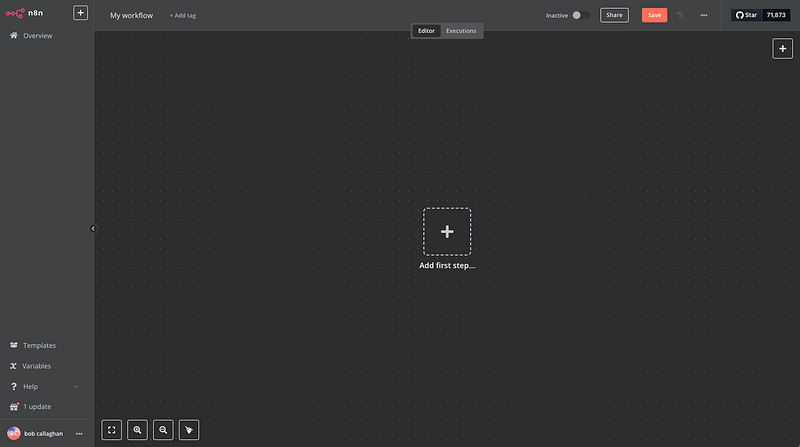
Okay, now that we are inside our new Workflow, we are going to create the connection with Wassenger in the following way:
Click on ‘Add first step’
Then search for “Wassenger”. Remember, you need to install the Wassenger node first. If you haven’t done it yet, check out our related article here.
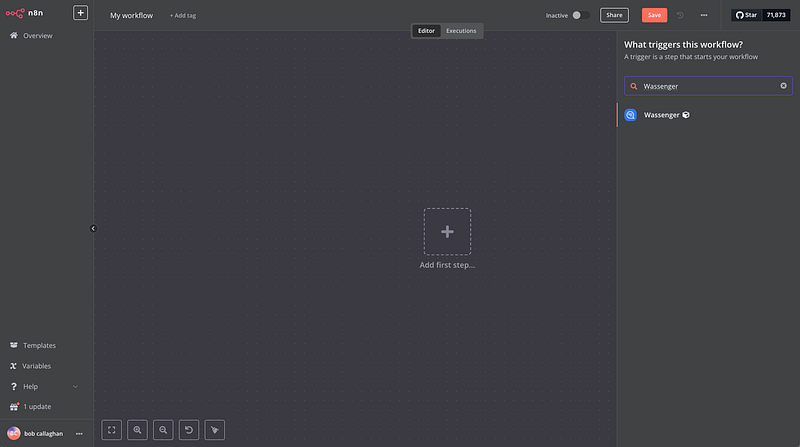
Then select the ‘On new inbound message received’ trigger
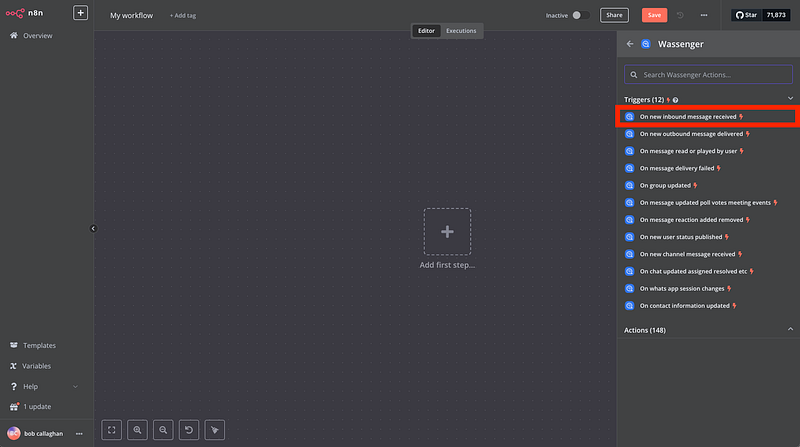
A window like this will open
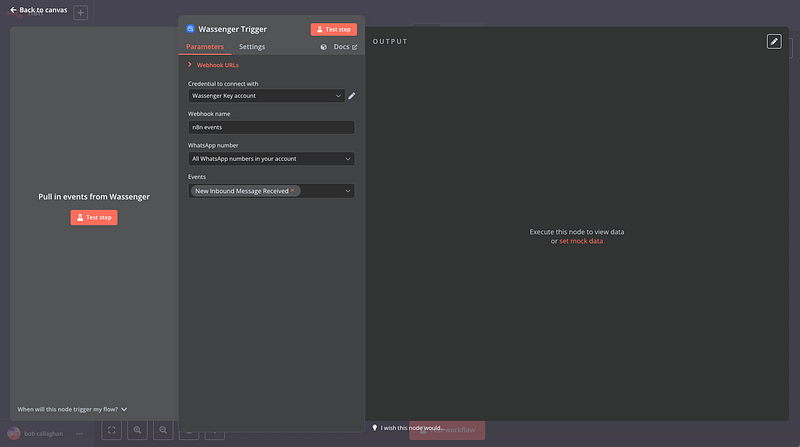
Now, we need to add our Wassenger API credentials to connect n8n with Wassenger:
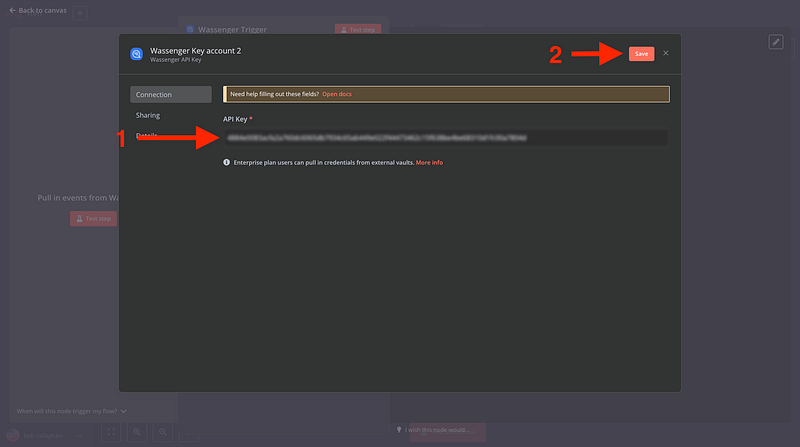
- Go to the API key page in Wassenger and copy the given API key or create one
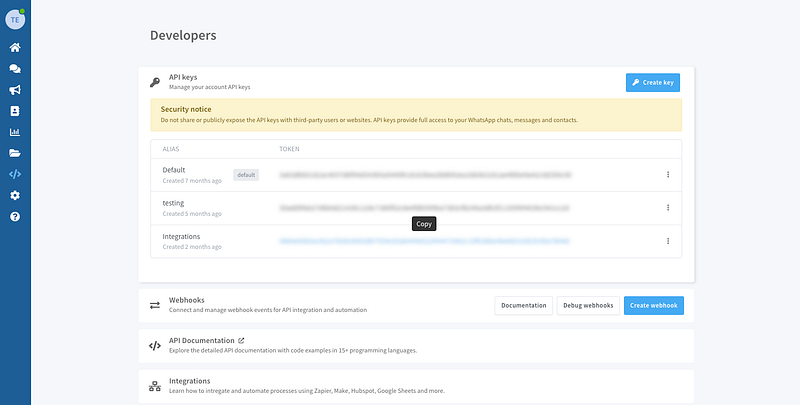
2. And copy it into the n8n trigger
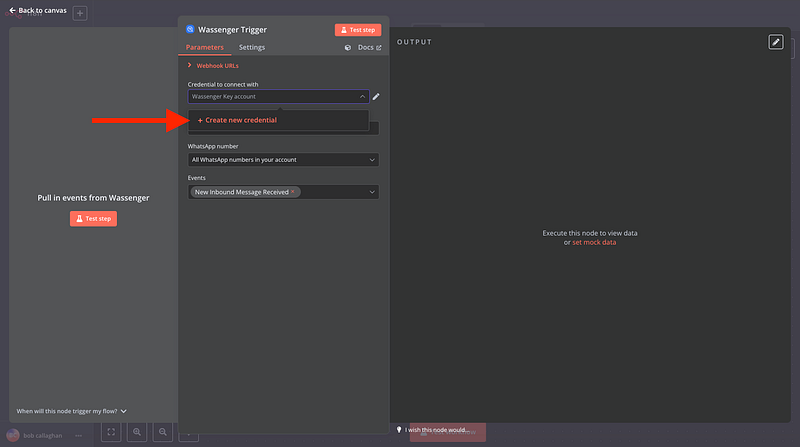
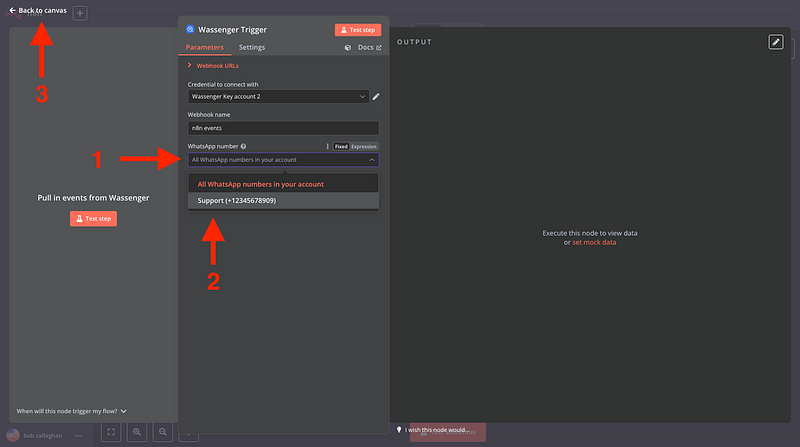
Then, select the connected WhatsApp number on Wassenger that you want to trigger the event and go back to your canvas
🤩 🤖 Wassenger is a complete API solution for WhatsApp. Sign up for a 7-day free trial and get started in minutes!
3. Connect your Wassenger Webhook to n8n
Now, for n8n to receive all message notifications when a contact texts you, we need to set up a new webhook
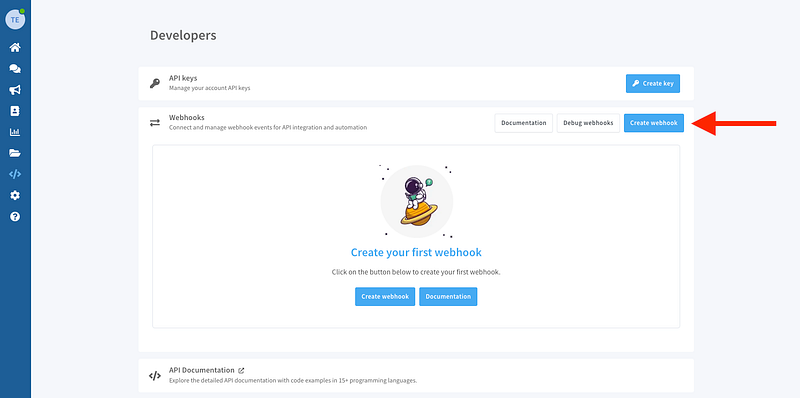
- Go to the Webhooks page here
- Create a new Webhook
Then
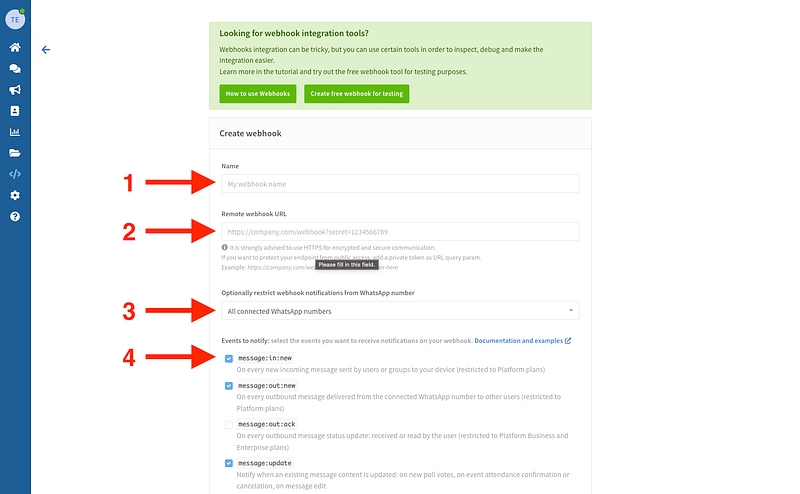
- Name your webhook
- Add the webhook URL that you will find in the first node we created in n8n

3. Select the number you want to transfer messages from
4. Select the event message:in:new
5. Save your new Webhook in Wassenger
🤩 🤖 Wassenger is a complete API solution for WhatsApp. Sign up for a 7-day free trial and get started in minutes!
4. Create a module that recognises text, audio and images
First, click on ‘Test step’ to receive inbound message data to our n8n workflow so we can manage it and work with it:

And after we send a message to our number connected to Wassenger and n8n, we will see something like this:

Now, we can start working with the retrieved data
Let’s create a ‘Switch’ module

Then we will create three possible scenarios and add a defined expression that will filter different kinds of messages
- Text:
{{ $json.data.type }} - Audio:
{{ $json.data.media.type }} - Image:
{{ $json.data.media.type }}

🤩 🤖 Wassenger is a complete API solution for WhatsApp. Sign up for a 7-day free trial and get started in minutes!
5. Add the AI Agent
Now, we will add the AI Agent module that will help us to analyse all the inbound messages and generate the outbound response
Click on the bottom node from the ‘Switch’ module


The following window will open.
We will proceed with the following configuration:
- Source for Prompt (User Message): DEFINE BELOW
- Prompt (User Message):
{{ $json.data.body }}

🤩 🤖 Wassenger is a complete API solution for WhatsApp. Sign up for a 7-day free trial and get started in minutes!
6. Connect the OpenAI chat Model

A window like this will open, and we will insert our OpenAI credentials
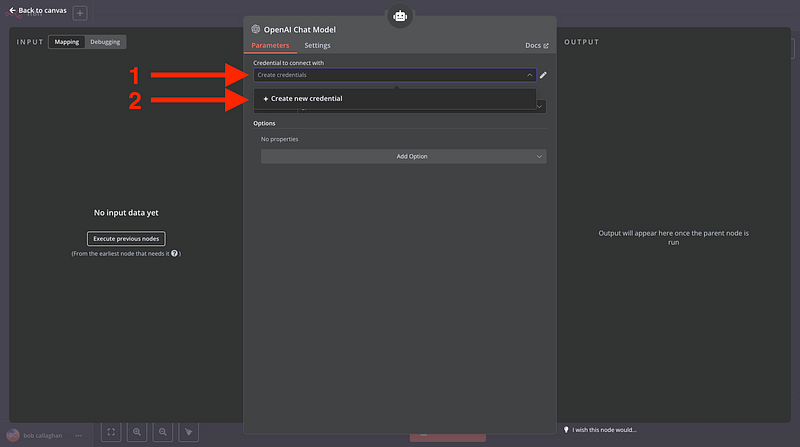
Create an OpenAI account and find your credentials here

Then add it to n8n

Now we will add a system message to indicate to the IA some extra instructions, like who the AI is talking to (Customer) and the precise time of the conversation:
You are a helpful assistant called Sam. Responde with a frendly and kinkd tone.
You are currently talking to {{ $('Switch').item.json.data.chat.name }}
The current time is {{ $now.toISO() }}

🤩 🤖 Wassenger is a complete API solution for WhatsApp. Sign up for a 7-day free trial and get started in minutes!
7. Add the memory node
The Memory node allows an AI model to remember and reference past interactions with it, and no credentials are required since it is stored within n8n

- Extend the ‘Context Window Length’ to 20
- Define the Session ID as Define below
- Change the field to Expression and add:
{{ $(‘Switch’) }}

🤩 🤖 Wassenger is a complete API solution for WhatsApp. Sign up for a 7-day free trial and get started in minutes!
8. Create the Audio messages flow
Next, we’ll configure how our bot will analyse and process audio sent by our clients. Let’s get started!
As you can see in the image below, the process consists of 4 main steps:
- Download the audio from the Wassenger API
- Generate the download file from an HTTP call
- Transcribe the audio with the help of AI
- Transfer this transcribed text to our AI agent

Let's download the audio from Wassenger.
Search for Wassenger > Chat Files Download File

Set the following configuration
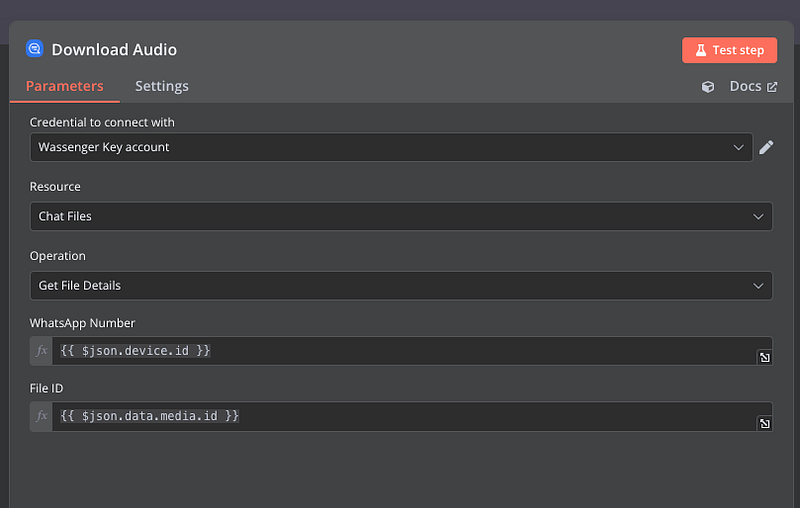
- Add your Wassenger account
- Select Chat Files as Resource
- Operation: Get File Details
- WhatsApp Number:
{{ $json.device.id }} - File ID:
{{ $json.data.media.id }}
Next, we will add an HTTP module to download the file

Configure the module as follows:

- Method: GET
- URL:
https://api.wassenger.com{{ $('Wassenger Trigger').item.json.data.media.links.download }}
3. Authentication: Generic Credential Type
4. Generic Auth Type: Header Auth
5. Header Auth: Header Auth account
Then, we will add:
- Name: Token
- Value: The API token from your Wassenger account. Get it here

🤩 🤖 Wassenger is a complete API solution for WhatsApp. Sign up for a 7-day free trial and get started in minutes!
Now, we will add the OpenAI module that transcribes the audio message
Search for: New module > Advanced AI > OpenAI > Transcribe a recording
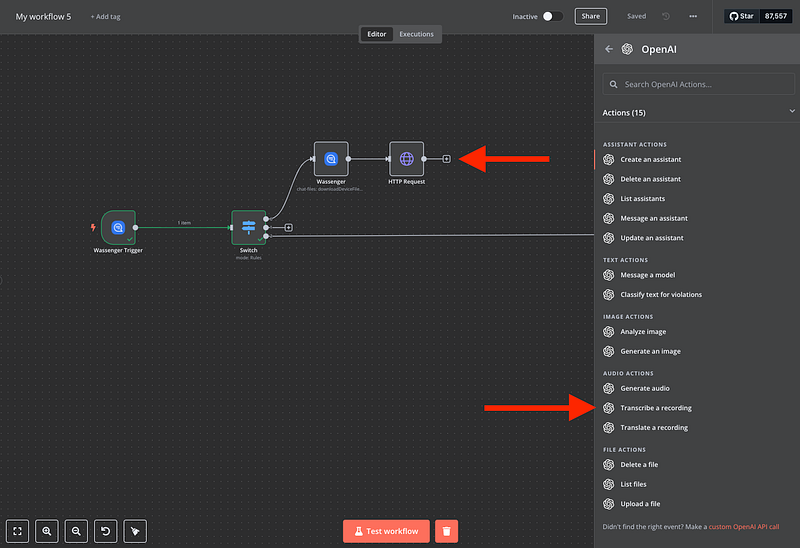
Then, configure the module:

Finally, we will send the transcribed audio to our AI agent with the SET module

And configure it:
- Mode: Manual Mapping
- Fields to Set:
data.bodyas String and{{ $json.text }}

Now we have our Audio transcription ready!

🤩 🤖 Wassenger is a complete API solution for WhatsApp. Sign up for a 7-day free trial and get started in minutes!
9. Analyse images
For our BOT to be able to analyse images, we will carry out a process similar to that of audio. Let’s see it
From the Switch module, add a new Wassenger Download Media module

Set the following configuration
- Add your Wassenger account
- Select Chat Files as Resource
- Operation: Get File Details
- WhatsApp Number:
{{ $json.device.id }} - File ID:
{{ $json.data.media.id }}
Next, let's download the image with the HTTP module as we did before with the audio
- Method: GET
- URL:
https://api.wassenger.com{{ $('Wassenger Trigger').item.json.data.media.links.download }}
3. Authentication: Generic Credential Type
4. Generic Auth Type: Header Auth
5. Header Auth: Header Auth account
🤩 🤖 Wassenger is a complete API solution for WhatsApp. Sign up for a 7-day free trial and get started in minutes!
Now, we will add the OpenAI module that transcribes the audio message
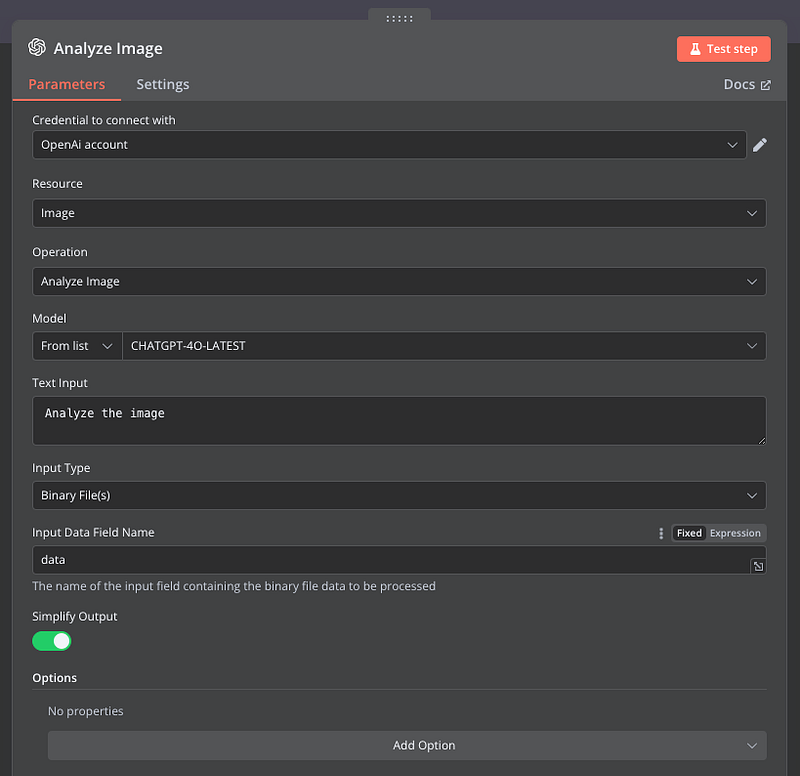
Search for: New module > Advanced AI > OpenAI > Analyze image
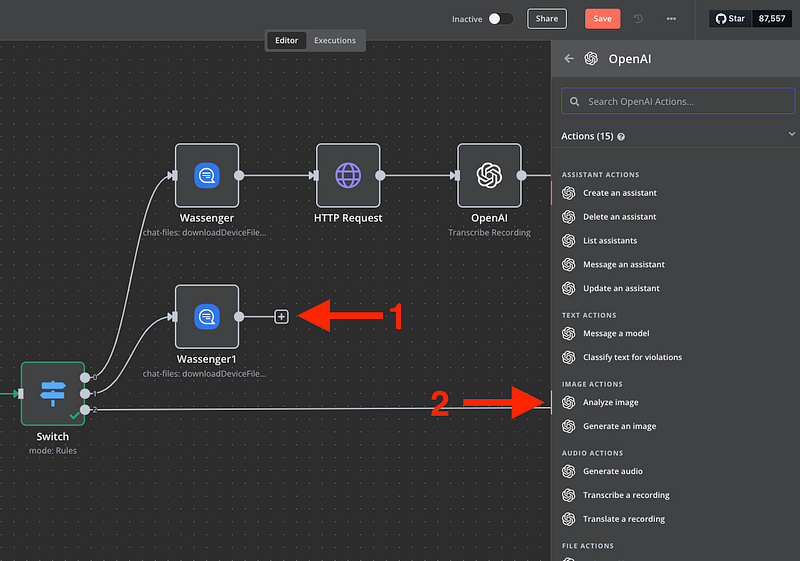
And configure the module as follows
- Credential to connect with: OpenAI account (Set the credentials mentioned earlier)
- Resource: Image
- Operation: Analyse Image
- Model: CHATGPT-4O-LATEST
- Text input:
Analyse the image - Input Type: Binary File(s)
- Input Data Field Name: data
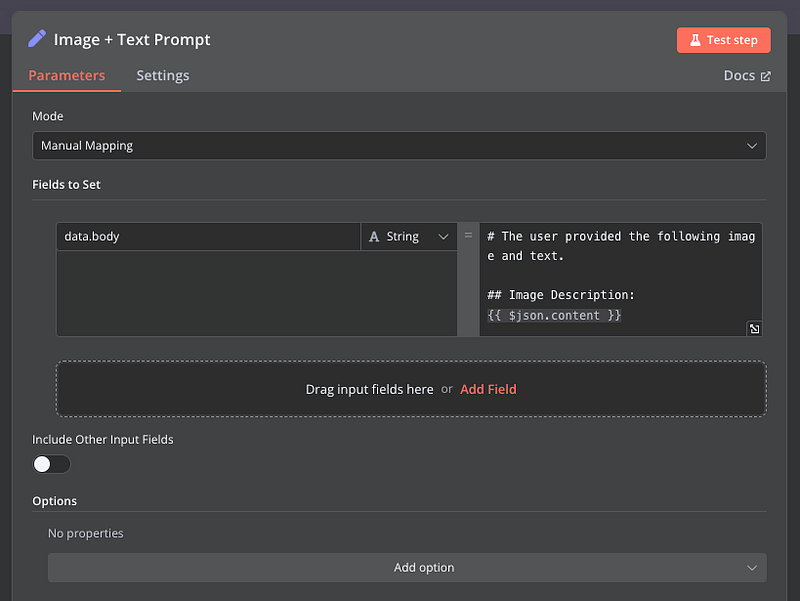
Finally, add the module SET to pass all the information to our AI agent
And configure it
- Mode: Manual Mapping
- Fields to Set:
data.bodyas String and
# The user provided the following image and text.
## Image Description: {{ $json.content }}
🤩 🤖 Wassenger is a complete API solution for WhatsApp. Sign up for a 7-day free trial and get started in minutes!
Okay! We now have the three possible scenarios for our bot to analyze text, audio, and images

Now let’s configure how we want our bot to respond based on the type of message it receives
🤩 🤖 Wassenger is a complete API solution for WhatsApp. Sign up for a 7-day free trial and get started in minutes!
10. Create the Audio response
From our AI Agent module, let’s add a new module called IF. This will help us change our response depending on the type of message received.

For configuration, we’ll set a value of ‘true’ or ‘false’ depending on whether the received message is an audio message or an image/text. For audio messages, we’ll reply with a different audio message, but this setting can be modified to your liking. The possibilities are endless!
- Conditions:
{{ $(‘Switch’).item.json.data.media.type }}is equal toaudio

Now, we will create the audio response flow, which will start adding the OpenAI module to generate audio:
- Add nodes > Advanced AI > OpenAI > Generate Audio

And configure it like so:
- Credential to connect with: OpenAI account (Set the credentials mentioned earlier)
- Resource: Audio
- Operation: Generate Audio
- Model: TTS-1
- Text input (Expression):
{{ $('AI Agent').item.json.output }} - Voice: Select your preference

Now, for WhatsApp to understand our generated audio, we need to convert it from audio/mp3 to audio/mpeg with a simple script that we leave you below:
- Create a new Code module

2. Configure it with the following code using JavaScript
// Loop over input items and change the MIME type of binary data for (const item of $input.all()) { // Check if the item has binary data if (item.binary) { // Find the binary property name (assuming there's at least one) const binaryPropertyNames = Object.keys(item.binary);
for (const propName of binaryPropertyNames) {
  // If the MIME type is 'audio/mp3', change it to 'audio/mpeg'
  if (item.binary\[propName\].mimeType === "audio/mp3") {
    item.binary\[propName\].mimeType = "audio/mpeg";
  }
}
} }
return $input.all();

Once we have our audio converted to the correct format to send it through Wassenger, we need to store it, either locally or in the cloud. In this case, we’ll do so using the cloud, which will provide us with a public URL so this file can be sent through the Wassenger API. For this tutorial, we chose Google Drive, but you can use any platform that suits you best.
- Create a new module for Google Drive (Upload File)

2. Set all the credentials for Google with n8n
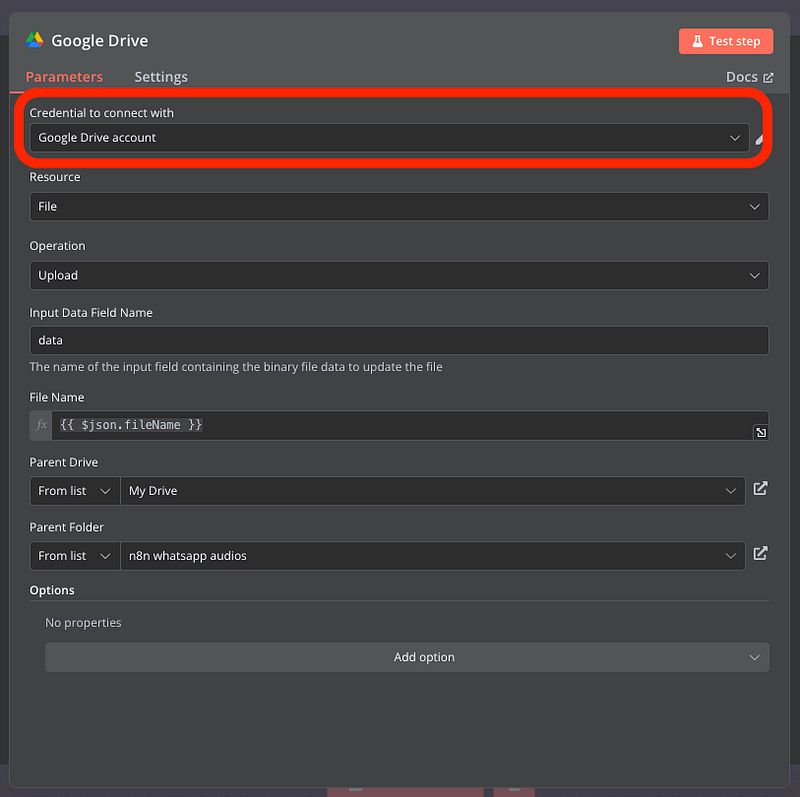
If you don’t know how to connect your Google account to n8n, watch this tutorial

3. In the File Name, we will add the following expression: {{ $json.fineName }}
4. Set the Parent Drive as My Drive
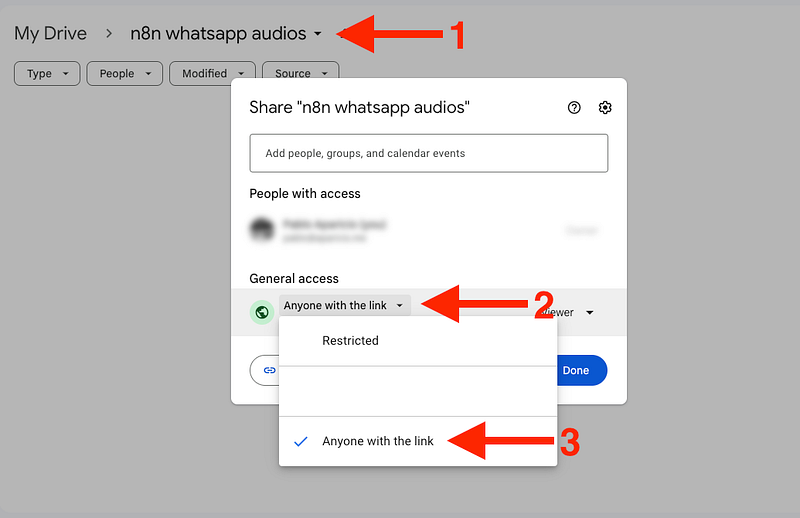
5. For the Parent Folder, we need to create a new folder within our Drive
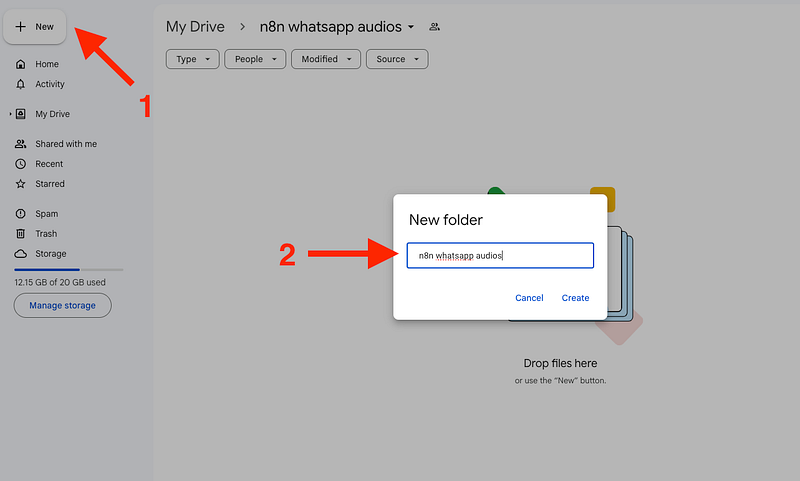
Then, make that folder public to be accessible from n8n. If you don’t make the folder public, the API call will return unauthorized access
🤩 🤖 Wassenger is a complete API solution for WhatsApp. Sign up for a 7-day free trial and get started in minutes!
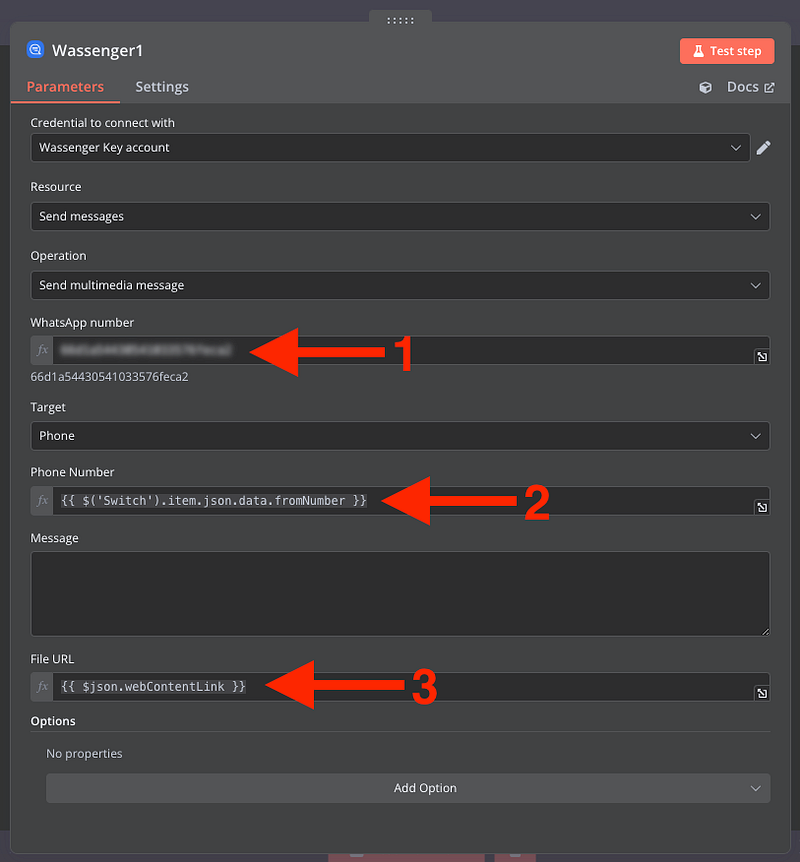
Now, we will create a Send Multimedia Message module with Wassenger to send the newly generated audio that is extracted from the URL provided by Google Drive

Configure the module
- Define the number from which you want to send the message
- Set the target number retrieved from the webhook data we configured at the beginning:
{{ $(‘Switch’).item.json.data.fromNumber }} - Set the file URL:
{{ $json.webContentLink }}
Finally, we’ll delete our file from Google Drive so we don’t store too many files in our cloud and run out of storage. This step is optional. If you want to store all the generated audio files, you can do so, but you’ll need to add a variable to name the audio files to avoid errors.
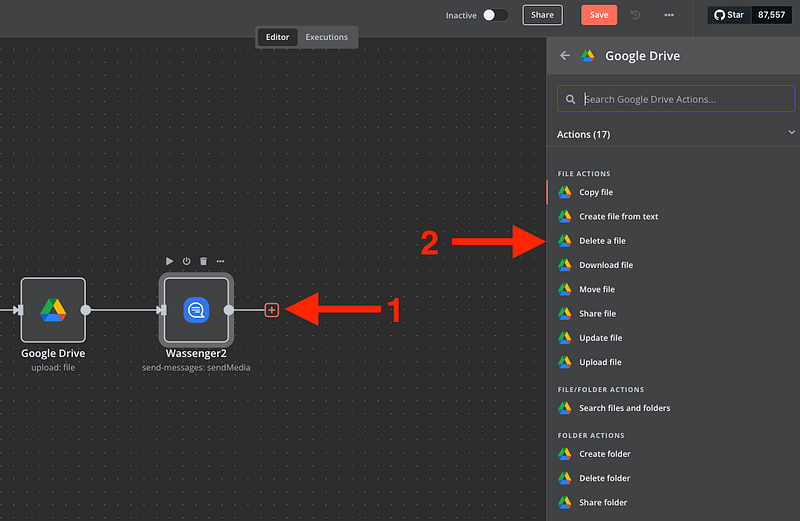
Set the file ID to be deleted: {{ $(‘Google Drive’).item.json.id }}

🤩 🤖 Wassenger is a complete API solution for WhatsApp. Sign up for a 7-day free trial and get started in minutes!
11. Create the Text response
Now that we have our Audio generator, we are going to create our text message generator which will be executed from the IF module and will be in the cases in which the user sends us images (The bot will analyze the message with the image and return a text) or when they send us simple text messages
- From the IF, add a new module

And configure the module
- Credentials to connect with: Wassenger Key account
- Resource: Send Message
- Operation: Send Text Message
- WhatsApp number: Your Connected Number
- Target: Phone
- Target:
{{ $(Wassenger Trigger’).item.json.data.fromNumber }}` - Message:
{{ $json.output }}

And there we have it! Our bot is fully configured! Now we can test the workflow to verify that everything is working correctly.
Real Test 🤖
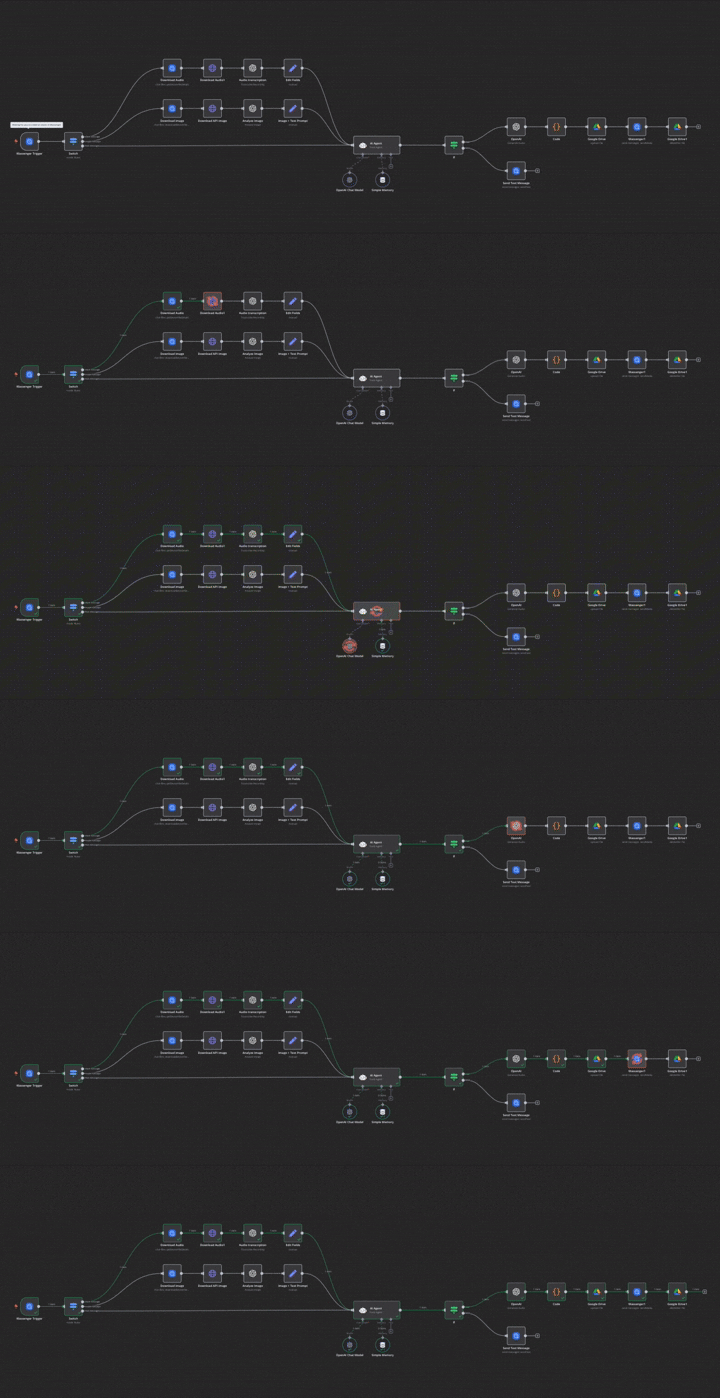
From the WhatsApp mobile app
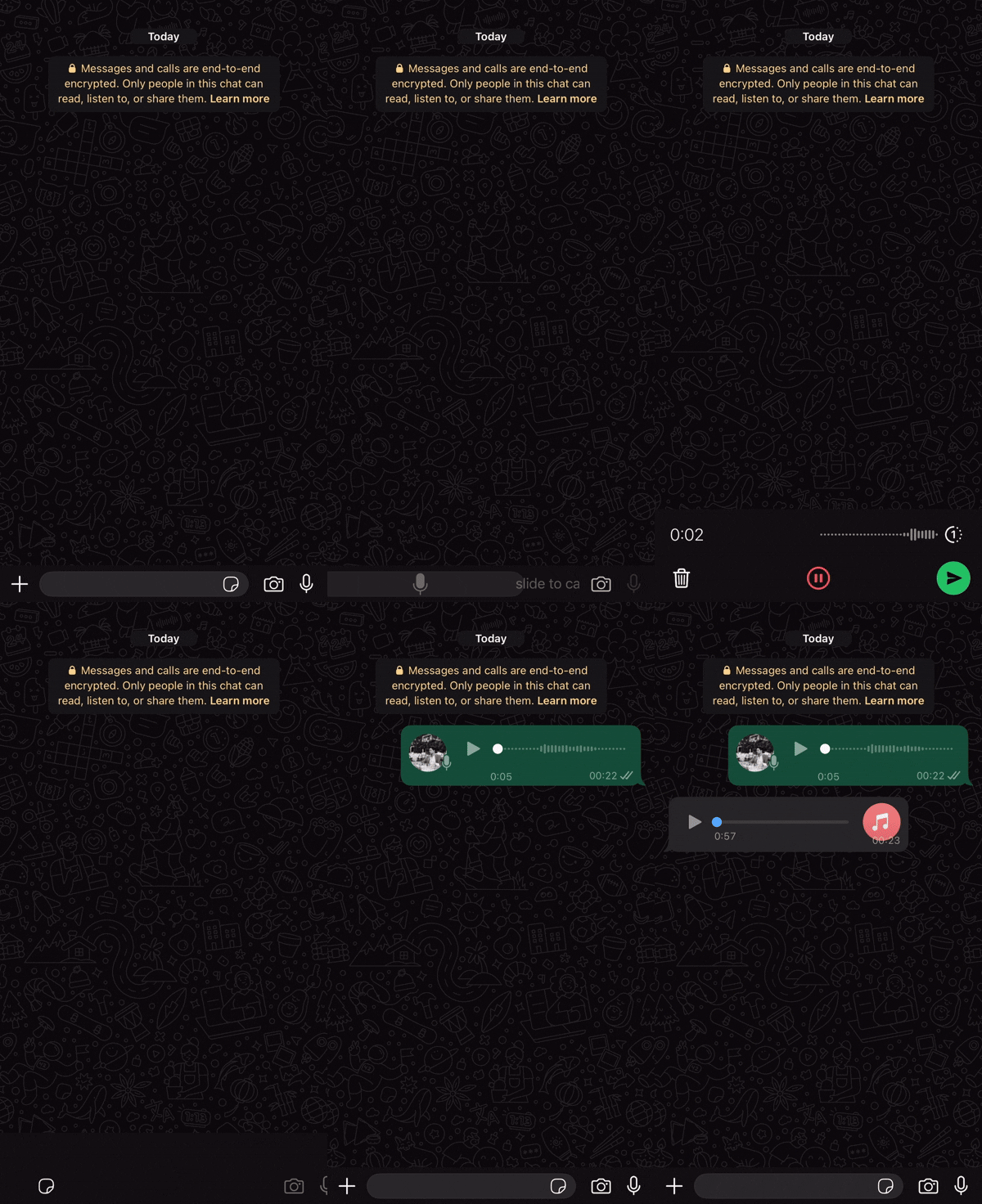
Congratulations! You’ve just learned how to set up the WhatsApp Agent Pro workflow using n8n and Wassenger, transforming your WhatsApp into a smart, AI-powered assistant. Imagine the possibilities
If this tutorial helped you, why not share the love? Spread the word by sharing this article with your network. Let’s help more people discover the magic of WhatsApp automation with Wassenger. Together, we can revolutionise the way businesses connect with their customers.
Ready to get started? Visit Wassenger now and take the first step toward smarter, more efficient customer communication. Your audience is waiting!