Take a bike repair shop with three mechanics answering one WhatsApp number (the shop is made up). On Tuesday a customer asks: "Is my bike ready?" Marco replies: "Not yet, the brake part arrives on Thursday. I'll call you as soon as it's in." The customer has nothing to add, so they don't write back.
To a person, that chat is clearly open: the shop owes a call. To an automatic rule that closes quiet chats, it looks finished, because Marco's message is the last one and the customer never answered.
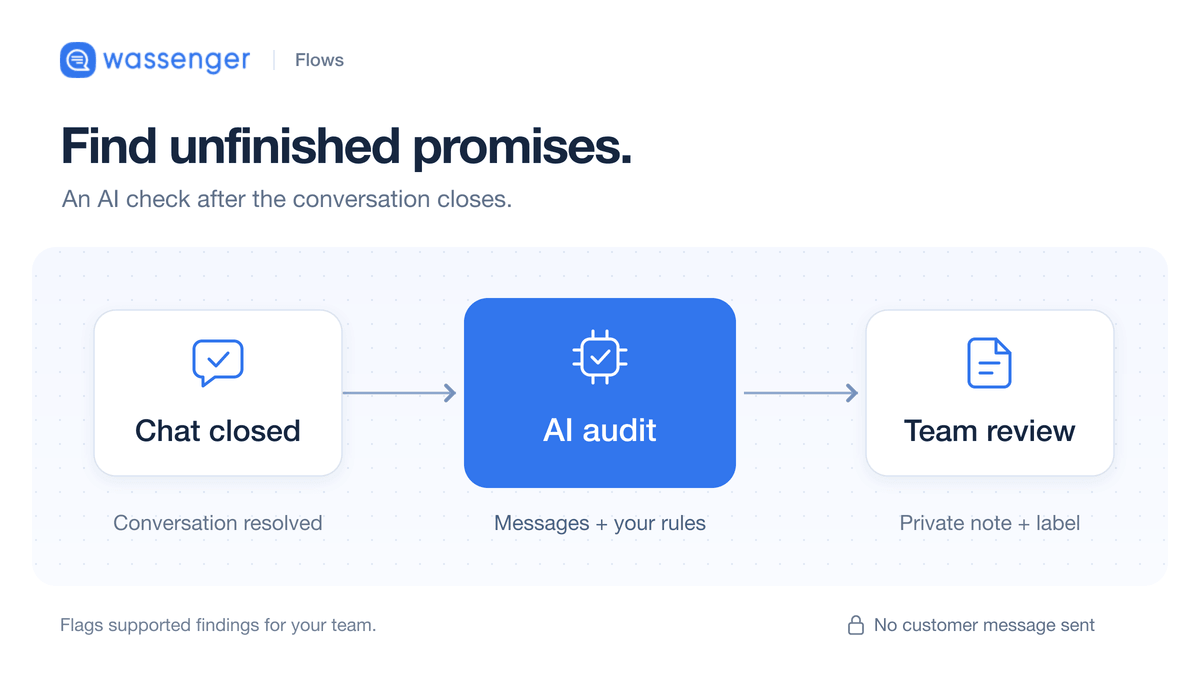
Wassenger can close all the chats where you answered and the customer simply moved on, so the inbox only shows work that's still pending. This guide sets it up so a chat like Marco's never closes, and so every promise your team still owes ends up in one list you check each morning.
What you get
- Finished chats close on their own. Wassenger calls this resolving: after the time you choose with no activity, the chat moves to Resolved in the chat filters. Nothing is deleted.
- Promises stay open, in one list. A chat with the label Call back is never resolved, however long it's quiet. Filter by that label and you see every promise still pending.
- Customers who got no reply at all, not even an automatic one, are never touched. If the customer wrote last, the chat stays open.
- The customer notices nothing. No message is sent. If they write again, the chat reopens in your inbox.
Before you start
- You need the Business or Enterprise plan. See plans and prices. To check yours, click Subscription in your number's menu.
- The account owner, an admin or a supervisor sets it up, one WhatsApp number at a time.
Step 1: Create the two labels
Open Wassenger and click your WhatsApp number on the dashboard. Its menu opens on the left (you'll see it in the screenshot in step 3). Scroll down past Quick replies to Labels and click Create label twice:
- Call back, for chats where your team owes the customer a call, a quote or an answer.
- Closed by inactivity, to find later what Wassenger closed.
Step 2: Label every promise you already owe
Ask each mechanic, or whoever answers your WhatsApp, to open their chats and add Call back wherever the customer is still waiting for something from you, however old the promise is. To label a chat, open it and type Call back in the Labels section of the panel on the right.
Start with the oldest. In the next step you'll choose 14 days, and any chat that's been quiet for longer than that closes as soon as you save. Newer ones stay open until they've been quiet for 14 days, or until you shorten the time in step 7.
Step 3: Turn it on with a long time
- In the number's menu, click Resolve chats automatically.
- Click On.
- Under When it resolves, pick 14 days. You'll shorten it in step 7.
- Keep Waiting on the customer. It only closes chats where your message is the last one, which is exactly where promises hide.
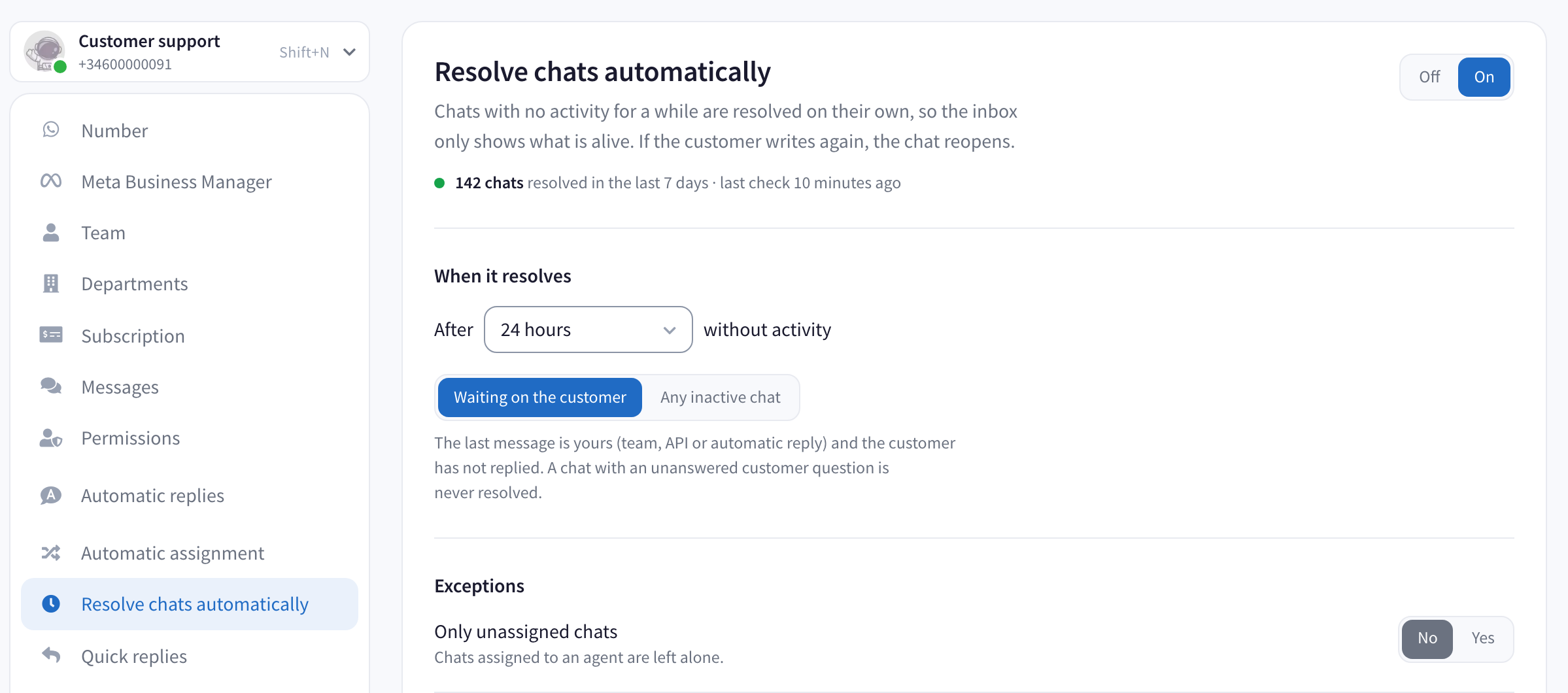
That screenshot comes from a number already running with 24 hours. The line under Waiting on the customer mentions messages from your team, from another tool connected to your number, or automatic replies: any of them counts as your message.
Step 4: Put Call back on the never-resolve list
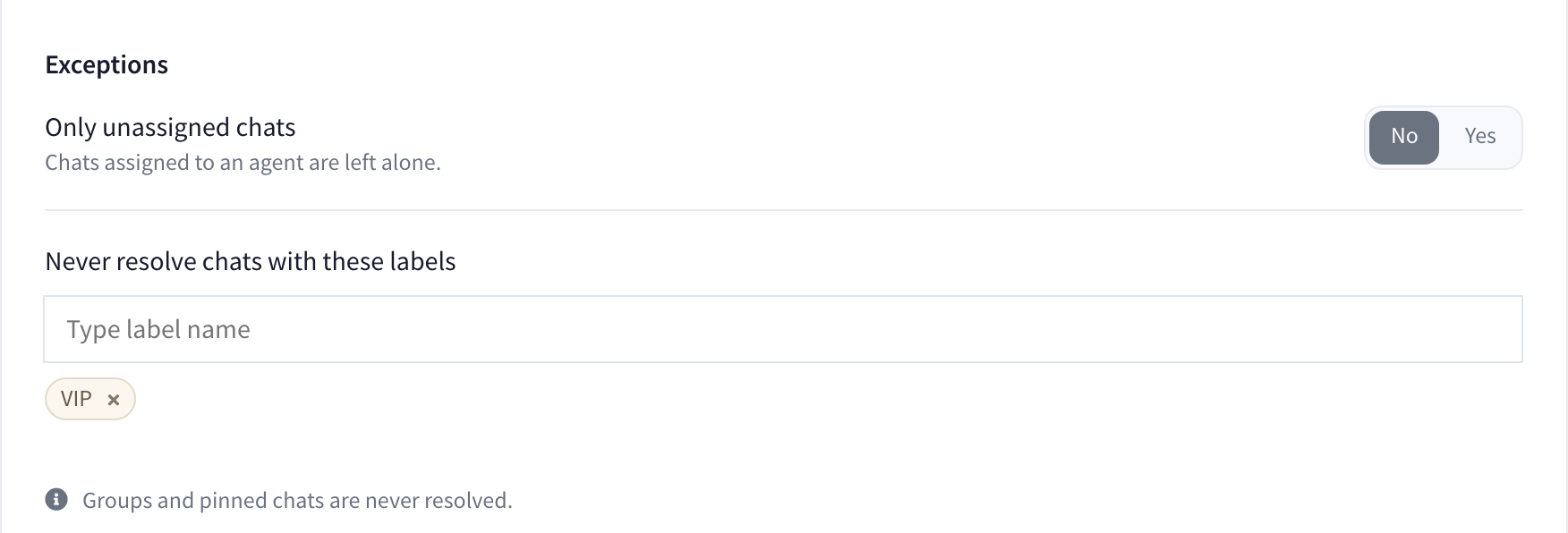
Under Exceptions:
- Only unassigned chats: No. Marco's finished chats belong to Marco, and they should close too. (Ignore the grey line under the switch: it describes the Yes setting.)
- Never resolve chats with these labels: type Call back and pick it. Add VIP or any other label that must stay open.
Step 5: Label what closes, and say why
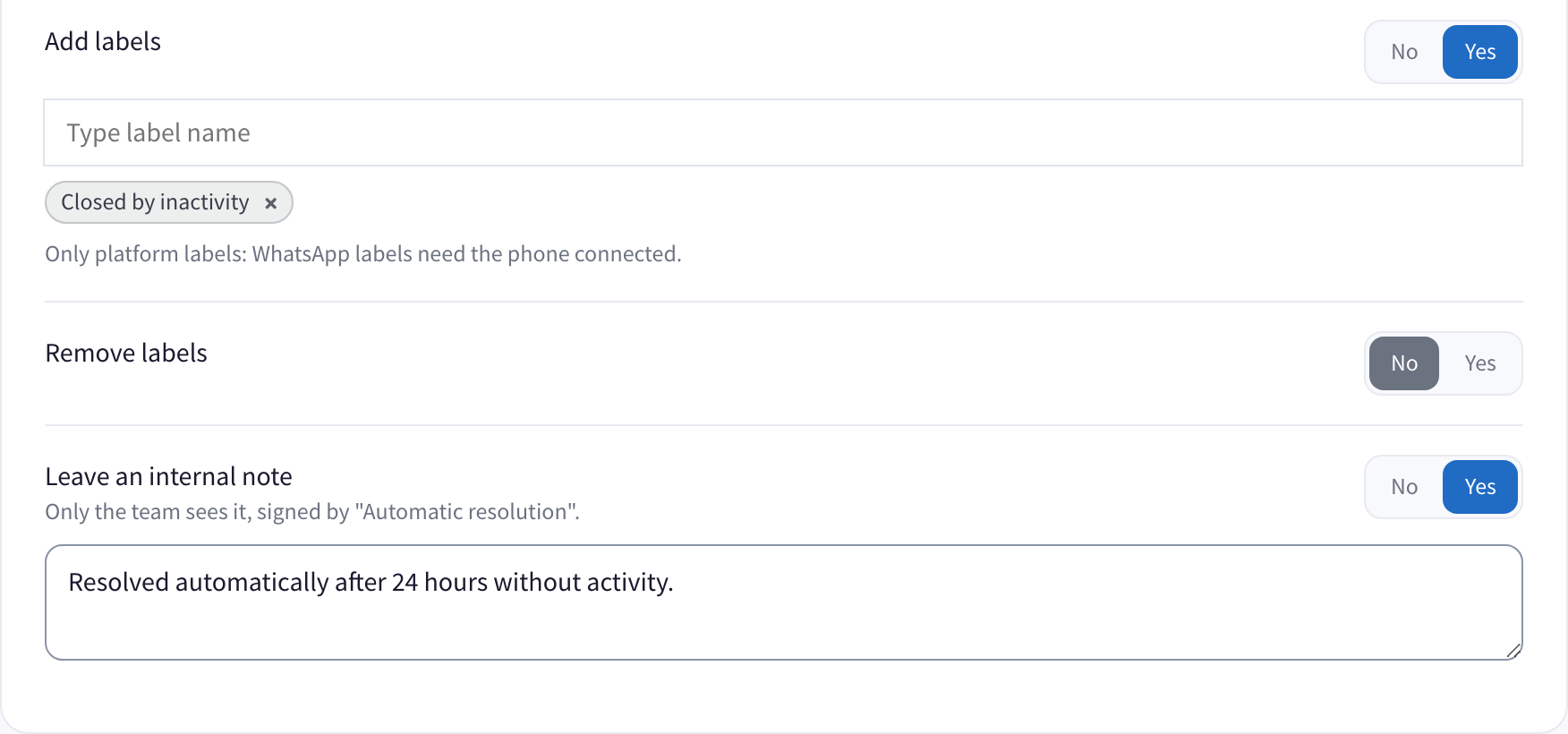
Under When resolving, also:
- Unassign the agent: No, so a returning customer goes back to the mechanic who knows their bike. It's the first switch in the section; the screenshot below starts just after it.
- Add labels: Yes, with Closed by inactivity. Labels created in Wassenger, like yours, are the "platform labels" the screen asks for.
- Remove labels: No.
- Leave an internal note: Yes. Replace the suggested text with something that stays true whatever time you choose, for example "Closed automatically: the customer stopped replying. Open promises carry the Call back label."
Step 6: Save and read the count
Click Save changes. If no chat matches yet, it simply saves. Otherwise, before closing anything, Wassenger tells you how many chats match right now and what it will do to each. You'll see a number, not names, so here's how to read it: these are chats quiet for more than 14 days, with your message last and no Call back label.
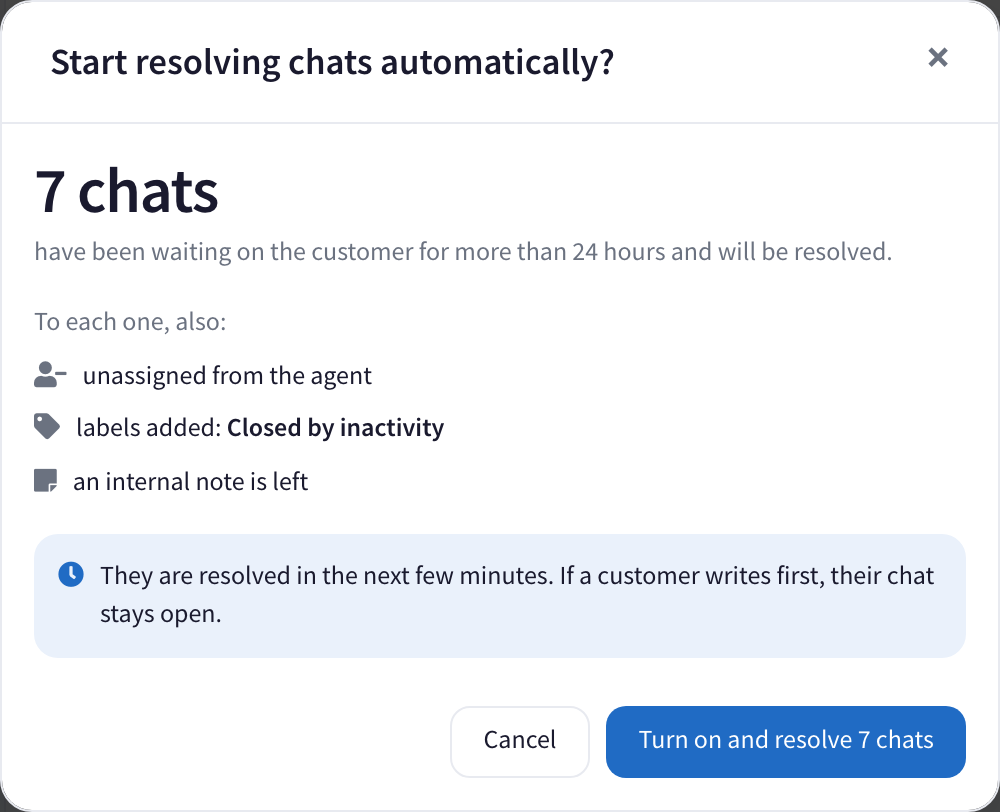
Your confirmation won't mention unassigning, since step 5 leaves it off. If the number sounds plausible, click the blue button, Turn on and resolve followed by that number. On a big backlog it works through about 1,200 chats an hour, and a customer who writes in the meantime keeps their chat open. After that it checks every few minutes.
Step 7: After a week, shorten to 3 days
Filter by Closed by inactivity and open a few chats. Found a promise that closed? Click Unresolve chat, add Call back, and keep it. Then set the time to 3 days and save; Wassenger shows the new count before it changes anything.
Why not 24 hours? Because people forget labels. With 3 days, an unlabelled promise stays in the inbox long enough for someone to notice it, weekends included.
What the team does each day
- When someone promises something, they add Call back to the chat.
- When the promise is kept, whoever knows it removes the label. If a mechanic calls from the workshop, the person at the desk removes it once they hear it's done.
- Every morning, use the label filter in your chat list to show Call back. That's the list of what your shop still owes.
Keep the promise first, then remove the label. A chat that's been quiet for longer than your time closes at the next check once the label is gone. A new WhatsApp message or call on this number starts the clock again; a call from the workshop landline doesn't, because Wassenger never sees it.
Questions owners ask
A promise slipped through. Can I get it back? Yes. Find the chat in Resolved or under Closed by inactivity, click Unresolve chat, and add Call back.
We use an away message. Does it change anything? It counts as your message. A customer who writes on Saturday and only gets the away message looks like a chat waiting on the customer, and 3 days keeps it in the inbox until Monday. Before a longer closure, like holidays, pick a time longer than the whole closure, weekends included, and come back to 3 days once you've caught up.
Does a thumbs-up from the customer keep the chat open? No. Reactions don't count as activity; a thumbs-up is usually how a conversation ends.
A customer wrote "Thanks!" and the chat never closes. Why? The customer sent the last message, so Wassenger treats the chat as waiting for you. Send a short sign-off of your own and it closes once your time has passed.
Your plan for this week
- New to Wassenger? Create your account and connect your WhatsApp number to the team inbox.
- Create the two labels and have the team label every open promise.
- Turn it on with 14 days and read the count before confirming.
- Next week, check what closed and shorten to 3 days.
- Start each morning with the Call back list.
Need a detail this post skips? The help center's Resolve chats automatically guide covers each option on that page.