An office manager asks for a furniture quote on WhatsApp. In the same conversation, she gives you her company, delivery city and email address. You can answer her question straight away, but those details still need copying into her contact record. When you return to prepare the quote, you read the messages again to find them.
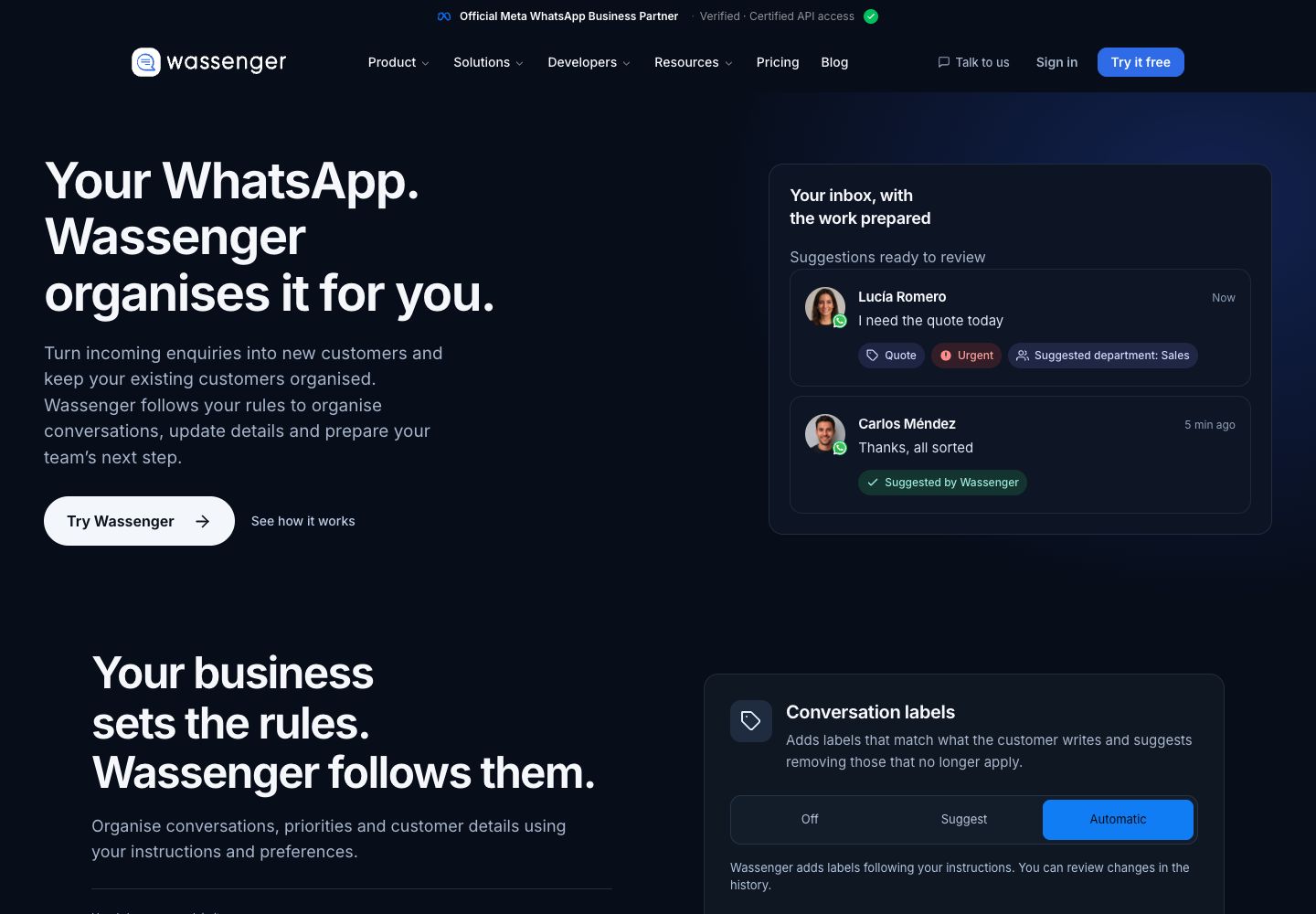
Your WhatsApp. Wassenger organizes it for you. Decisions can take customer details from incoming conversations and fill the empty fields you choose. It can also label the request and help you spot an enquiry that needs attention. You decide which jobs to delegate and which suggestions to review.
Keep the details the customer already gave you
Suppose you run Mason Office, a small furniture supplier. Mina writes:
Hi, I'm Mina from Harbor Studio in Porto. We need a quote for 12 desks. Please email it to mina@example.com. Could you send it by Friday? Our office move is next week.
There are several useful pieces of information in that message. Email, Company and City belong in Mina's contact details in Wassenger. The quantity, deadline and reason for asking belong to the conversation you need to understand before quoting.
In Decisions, you choose the contact fields it may fill. Start with Email, Company and City if those are the details you regularly copy. With Suggest, it prepares proposed additions for someone to check. With Automatic, it can fill those empty fields when it is sufficiently confident.
The source is what the customer wrote. You don't need to select each conversation and paste an extraction prompt. After you enable the relevant functions, new customer messages in individual chats start the work. See how contact records fit into Wassenger's CRM.
Preserve the record you already have
Mina may already be a customer. Perhaps her Company field says Harbor Studio Ltd, while this message uses the shorter Harbor Studio. Decisions preserves the existing value. It only fills fields that are empty.
That matters when someone has already checked a billing name or corrected an address. A new enquiry shouldn't replace that work with whatever wording happens to appear in the latest message. You still need to review any change to information that is already present.
Keep the first configuration small. Choosing Email, Company and City makes the result easy to inspect. If your business needs a different field, choose it deliberately rather than giving Decisions every available field at once. A useful first result is a few accurate details beside the chat.
Give quote requests a clear meaning
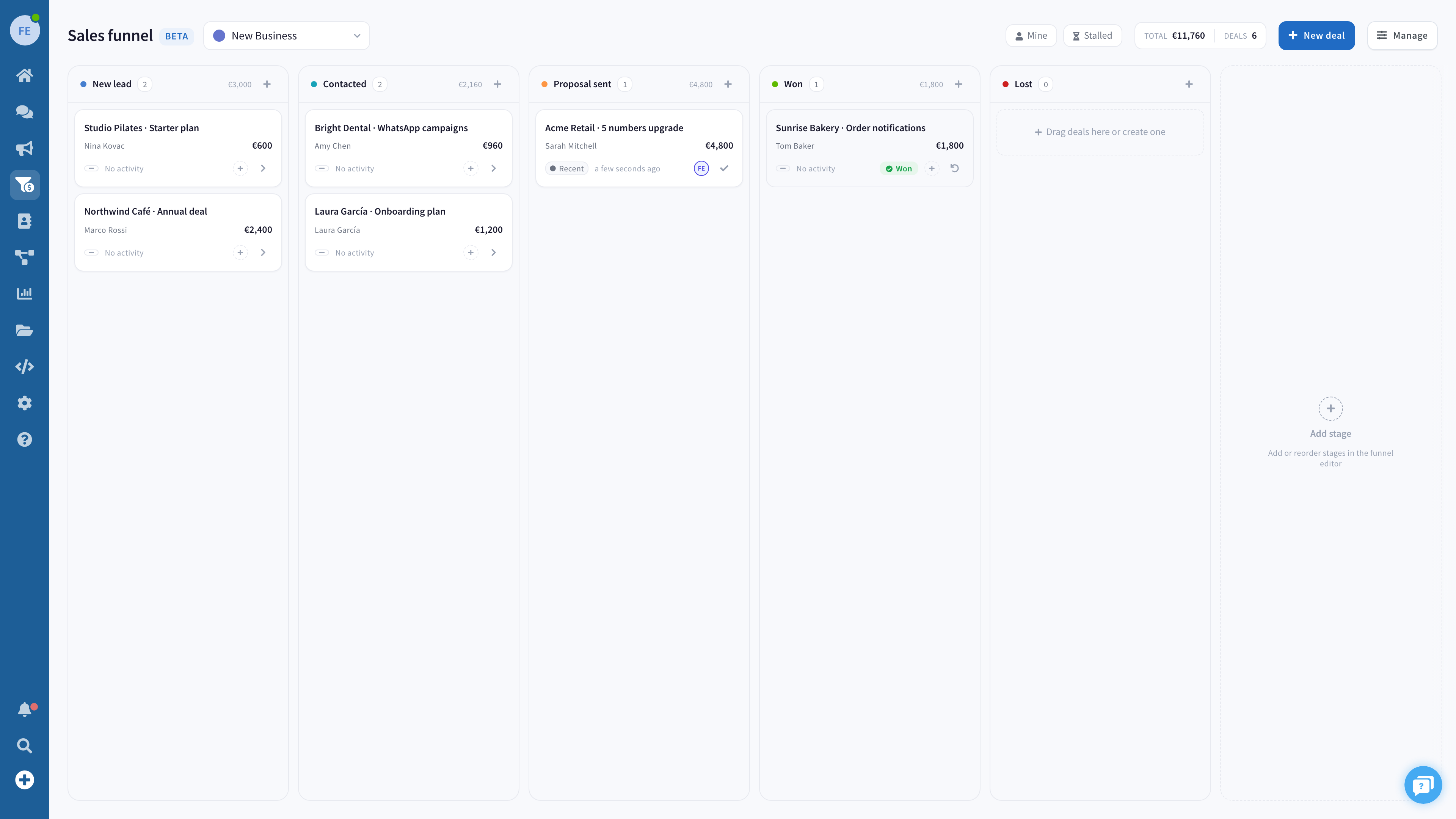
Contact details tell you who is asking. A label helps you recognize what they need when you return to the team inbox.
For a Quote request label, write an instruction such as:
The customer asks for a price or a written quote for furniture they want to buy.
Decisions uses your instruction to judge when the label applies. Start with Suggest to check its interpretation. If you choose Automatic for labeling, it can add that label itself. Removing a label remains a suggestion for a person to review.
Mina's deadline also gives you context for urgency. With Priority enabled, Decisions can mark an urgent customer enquiry. The mark helps you notice a message that needs attention; you still check what the customer needs and whether you can meet the date. It doesn't establish stock availability or a confirmed delivery commitment.
Configure one number and try a new enquiry
Use the desktop web app to open the settings for your WhatsApp number and find Decisions. The settings belong to that number, so begin with the one that receives your sales enquiries.
- Choose the contact fields. For the contact-data function, allow Email, Company and City. Start in Suggest so you can compare the proposed values with the message.
- Define the quote label. Give the label an instruction describing the customer's request, then enable its use in Decisions. Choose Suggest for the first test.
- Enable Priority if useful. Keep it focused on helping you notice enquiries that need attention. It has its own control, rather than the contact-field mode.
- Send a fictional enquiry from a test phone. Use the Mina message above with an address you recognize as test data. Check that the receiving contact has empty fields for the first test.
- Inspect the result in the conversation. Compare the proposed email, company and city with the customer's exact words. Check the label, then accept or dismiss the suggestions according to what you find.
For a second test, put a clearly recognizable value in one of those contact fields before sending another enquiry. Confirm that Decisions preserves it. Turning the feature on starts with new customer messages; it doesn't clean up your entire earlier conversation history.
Review the action that follows the quote request
Once the contact details are prepared, you can concentrate on the request: are the desks available, what should the quote include, and who will answer Mina?
Decisions can also propose a next step or a department assignment. Those proposals need a person to review and apply them. Read them against the conversation, especially when the customer has given a deadline or something your business must confirm first.
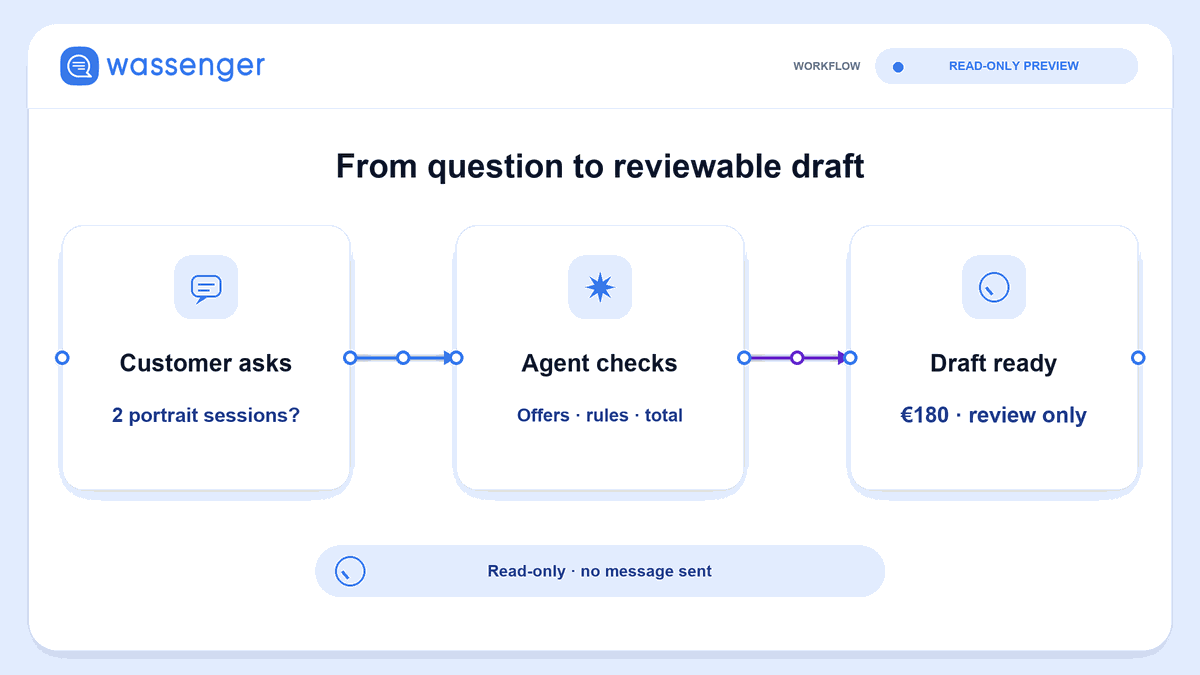
Decisions doesn't send customer replies. If it prepares wording, a person reads and sends it. The price, availability and answer remain your responsibility. Use the history to inspect what Decisions proposed or changed, and adjust your instructions when the result misses the meaning of an enquiry.
Start with the next customer who writes
Decisions is available in Business and Enterprise. For the first setup, pick the details you most often copy from real enquiries and one label with a clear definition. Test those together before adding more functions or choosing Automatic.
The useful outcome is visible in the next conversation: customer details prepared in the contact record, the request easier to recognize, and enough context for you to decide how to respond.
Explore Decisions in Wassenger and choose the first part of that routine you want it to handle.